
NETVERSE · Individual Dashboards
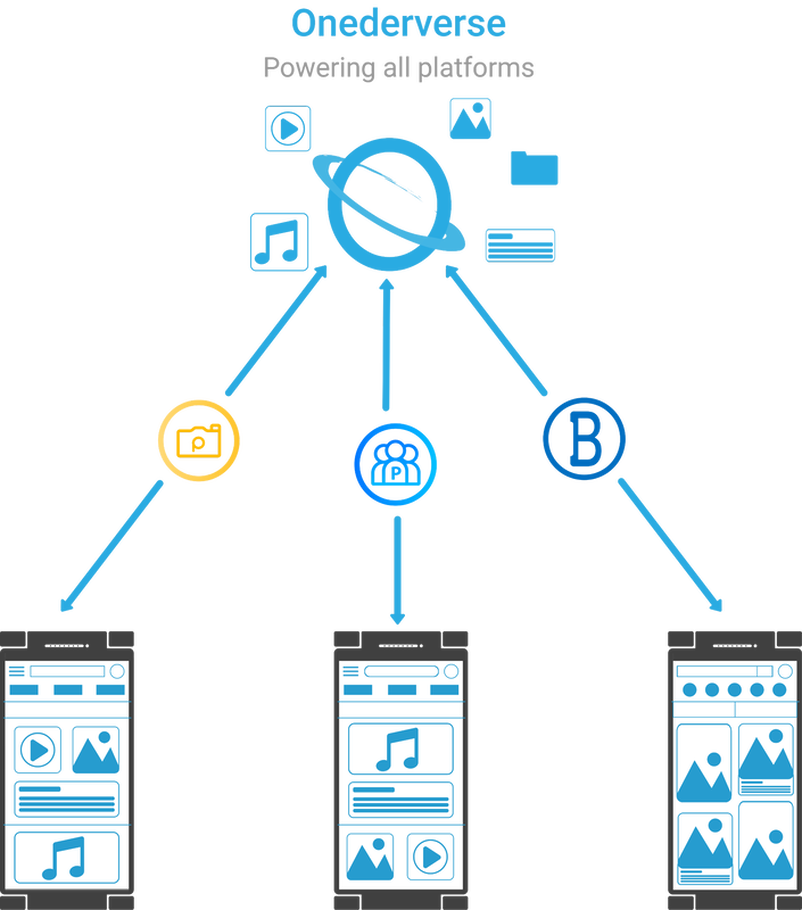
Onederverse
Revolutionizing Data Throughout Netverse
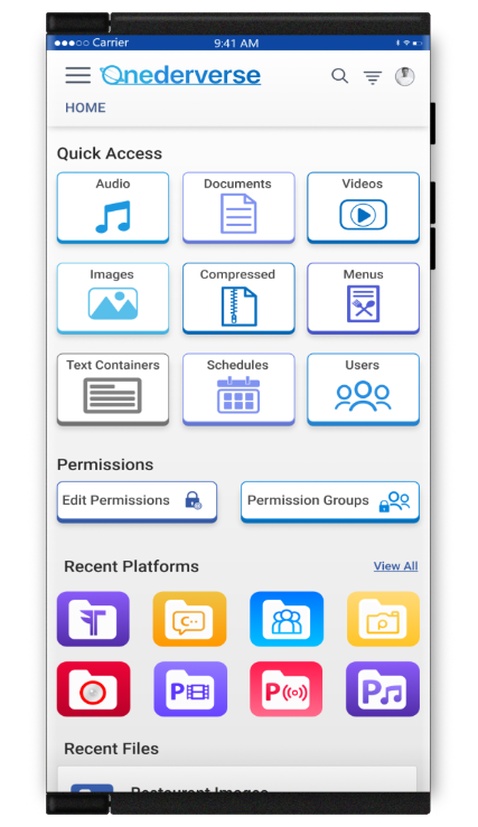
Onederverse will offer consumers and merchants alike a convenient, customizable, main dashboard to access everything they upload, including files, documents, images, videos, rich media and more.
Dashboard & Files
Dashboard (Files, Images, Platforms)
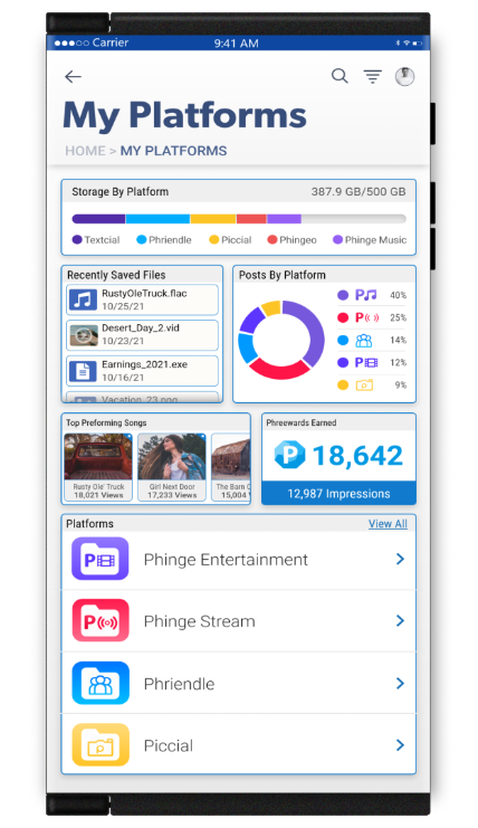
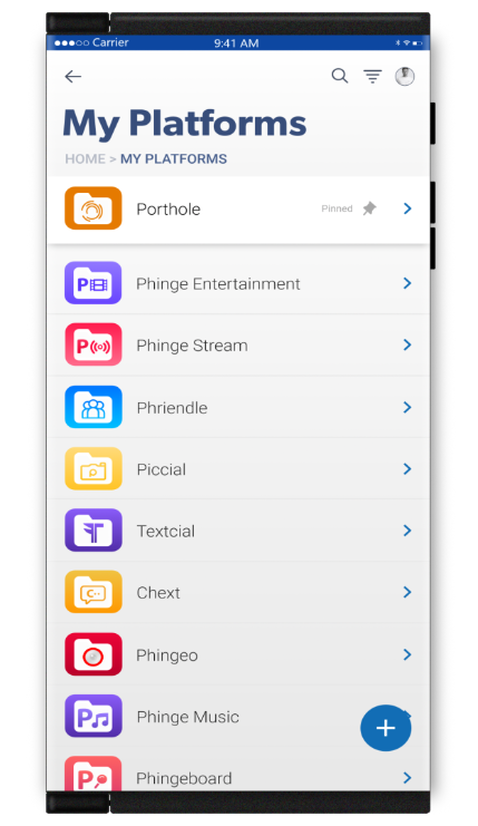
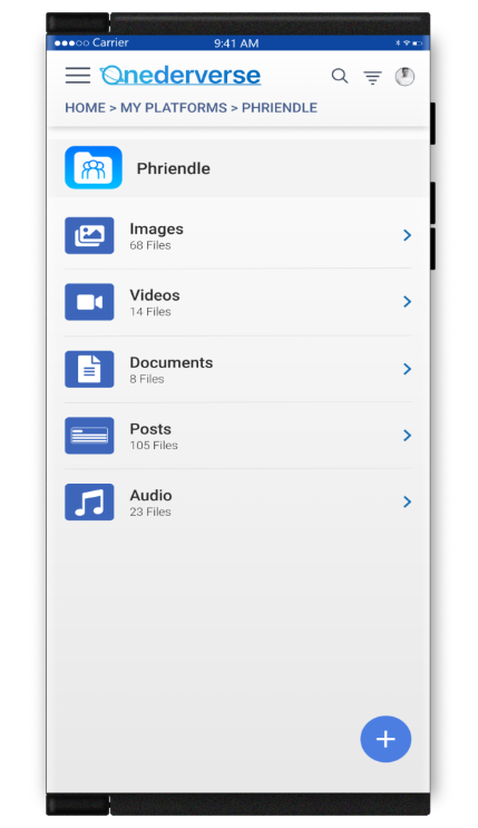
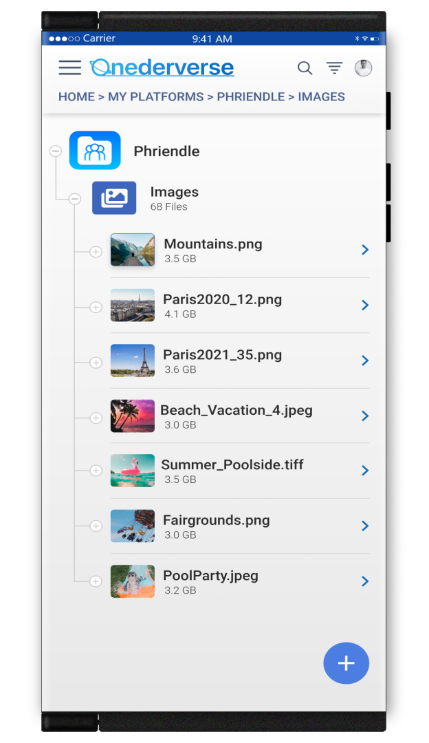
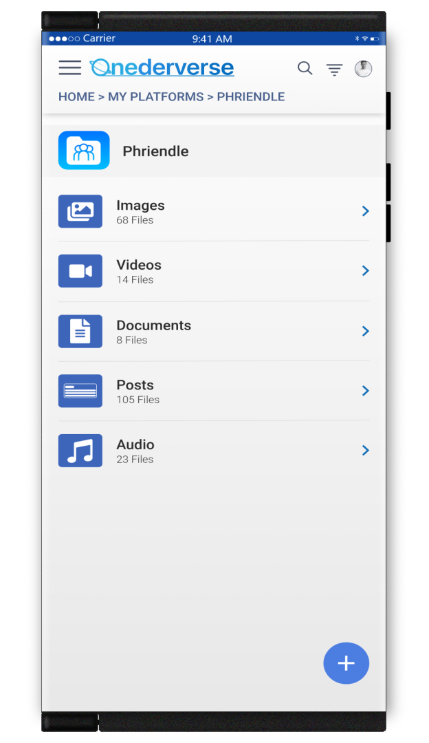
Access all Netverse and approved platforms in one dashboard. Access all your files, images, posts, videos, audio and more related to the selected platform.
Find, View and Replace Images Wherever They Are
Onederverse will offers consumers and merchants alike a convenient, customizable, main dashboard to access everything they upload, including files, documents, images, videos, rich media and more.
Scroll →
Creating Folders
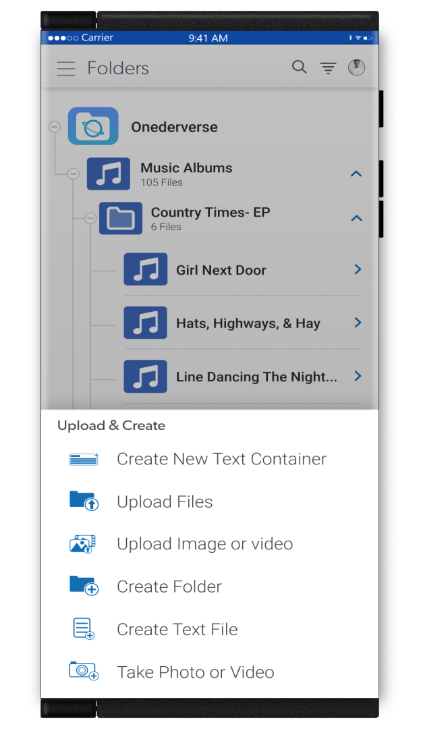
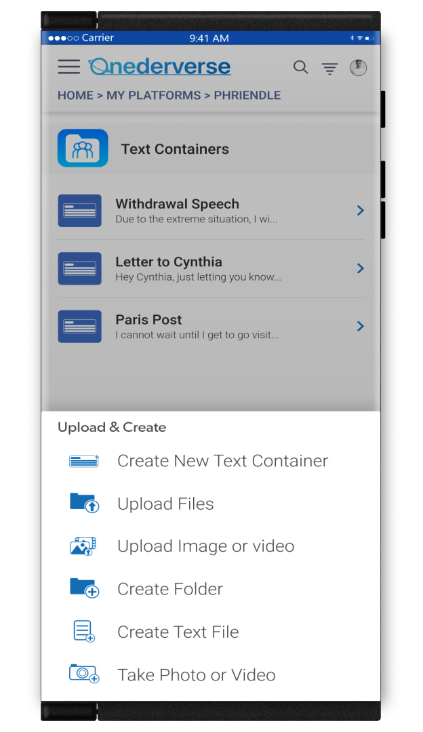
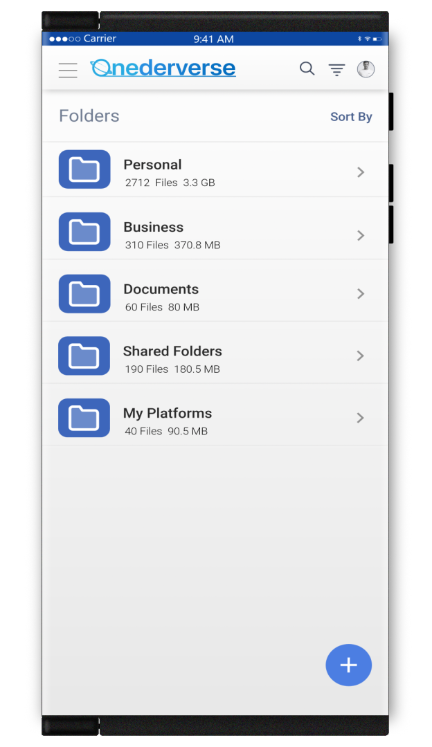
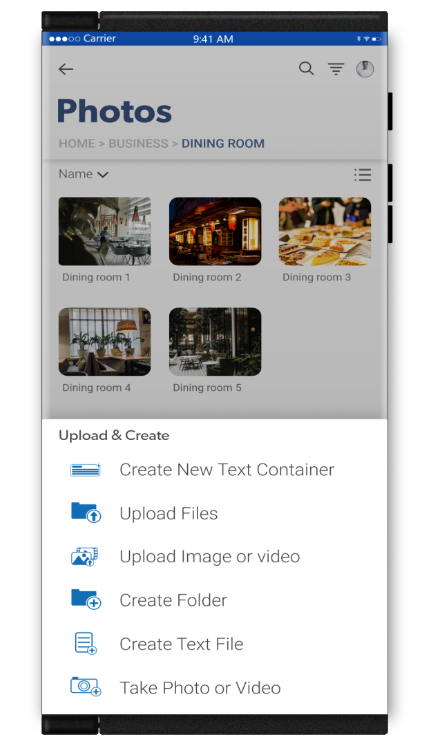
Create folders for use throughout Netverse. Upload music, image, documents and even create text containers.
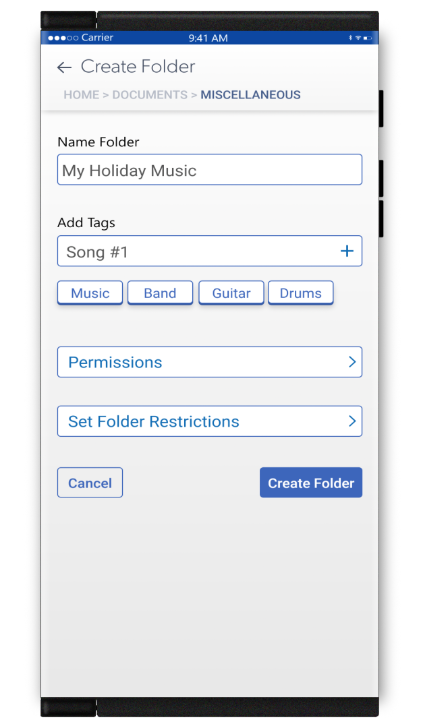
Name your folder, add tags, set permissions and folder restrictions to create your new folder. Your folder is now accessible from anywhere throughout Netverse and its approved platforms.
Scroll →
File Structuring
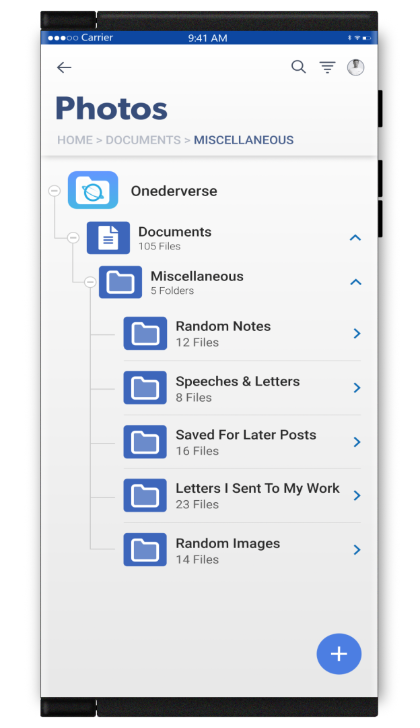
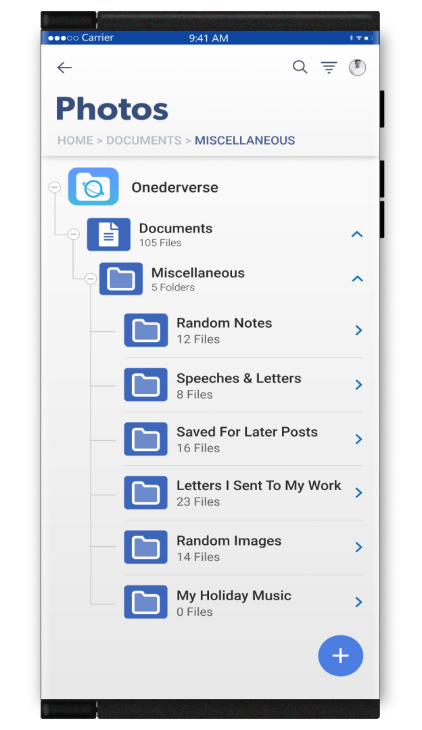
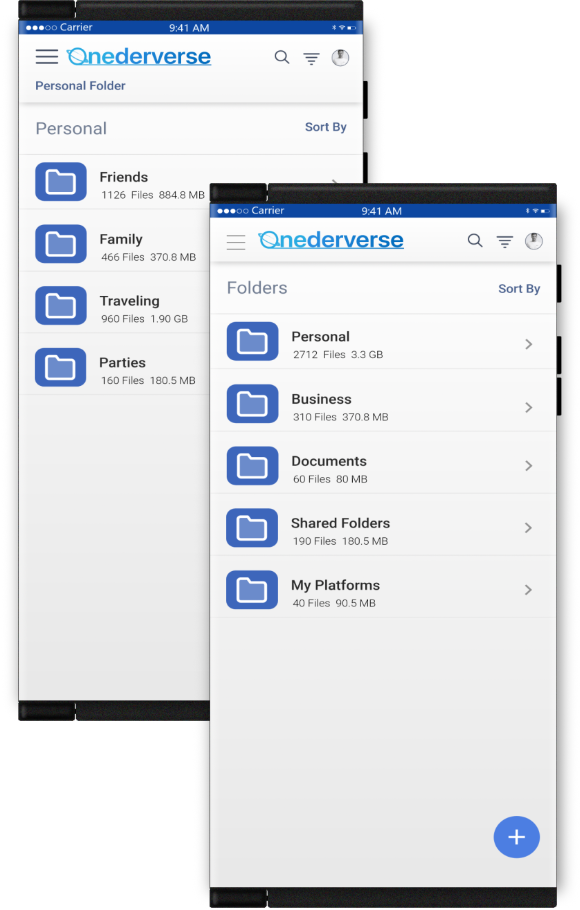
Users and businesses may create detailed file structures in Onederverse for use throughout Netverse and its approved platform
File structures may be created for files, images, media and more. Merchants may create them for their businesses as well. File structures may be set up by separate business locations. Files, documents, images etc. within the file structures could be made accessible by any or all of their locations and their management by setting sharing permissions
Scroll →
File Organization
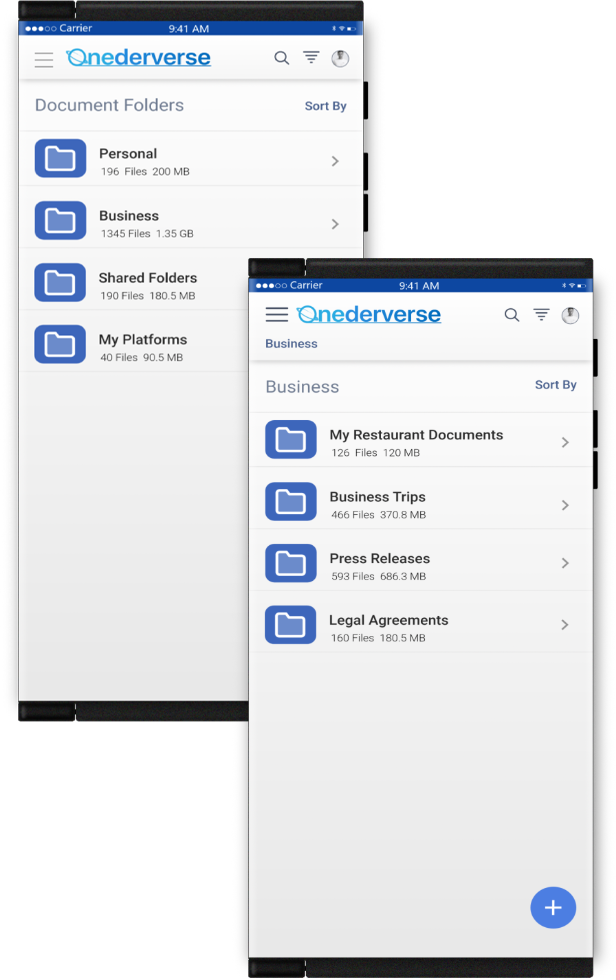
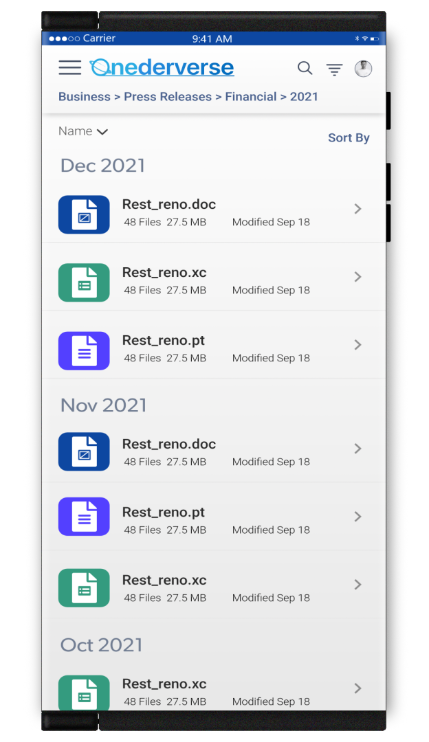
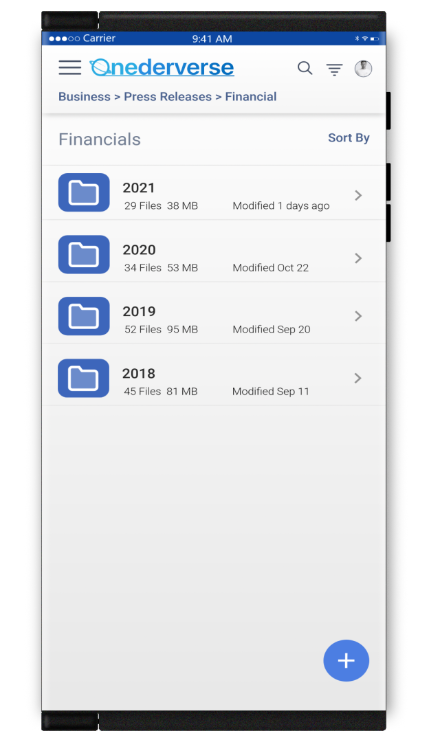
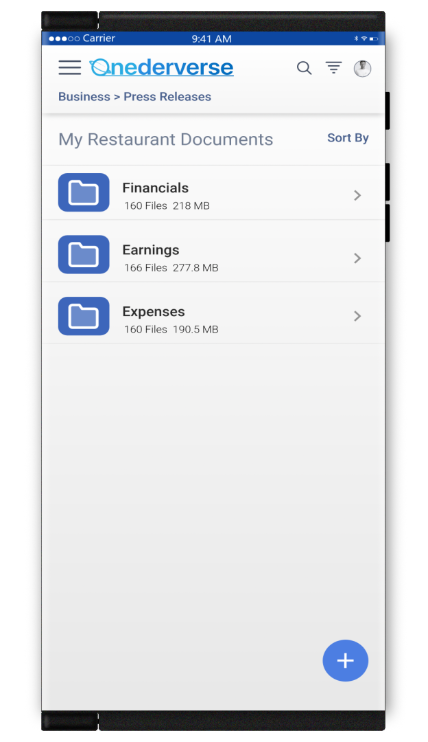
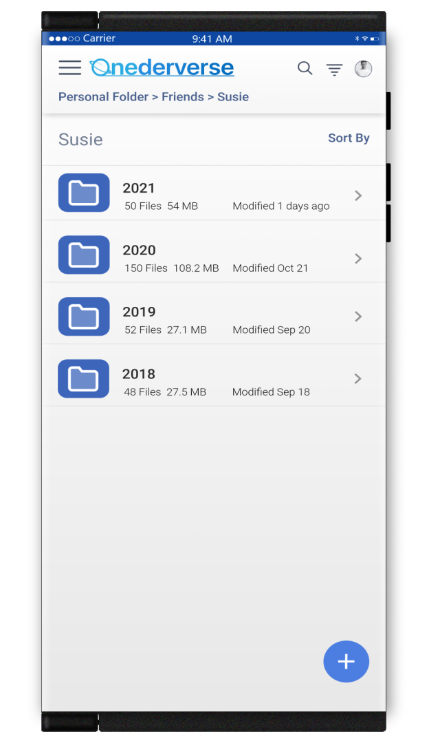
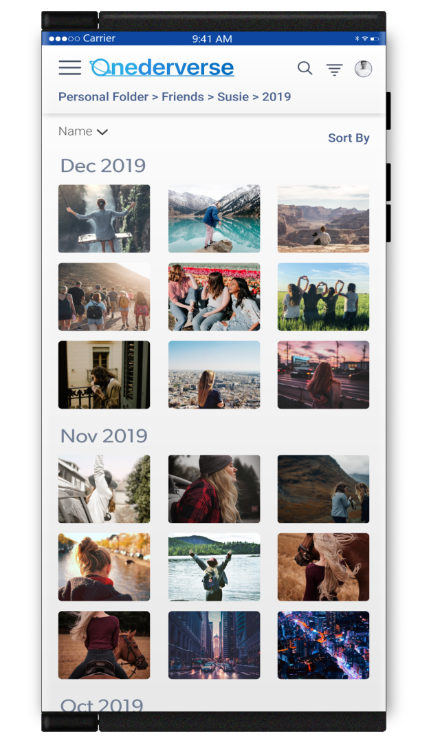
Organize your data and content in any way that you like. You can structure it by topics, people, events, platforms and more. Add dates, months and years to your file structure. Create, merge and share easily, all from your file structures from one convenient dashboard.
Organizing files on Onederverse is a breeze. With a comprehensive and customizable file structure, finding data, and content is easy.
Scroll →
Save Everything to Onederverse
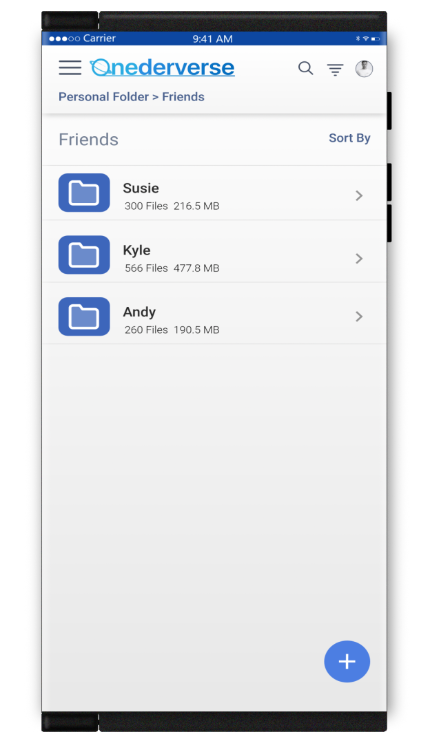
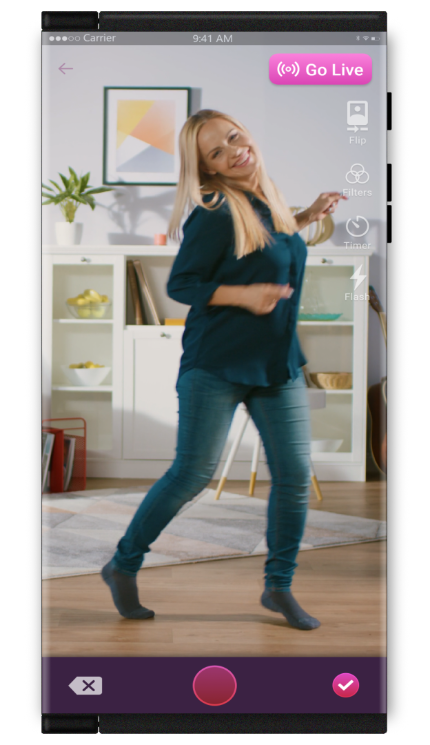
From streaming live to listing items in real-time auctions, everything is saved on Onederverse through your unique and secure Netverse account.
Content that is created and displayed by you anywhere throughout Netverse is saved and accessible to you though Onderverse at any time. Everything saved on Onederverse will be securely accessed through any Netverse platform through Netverse mobile devices.
Scroll →
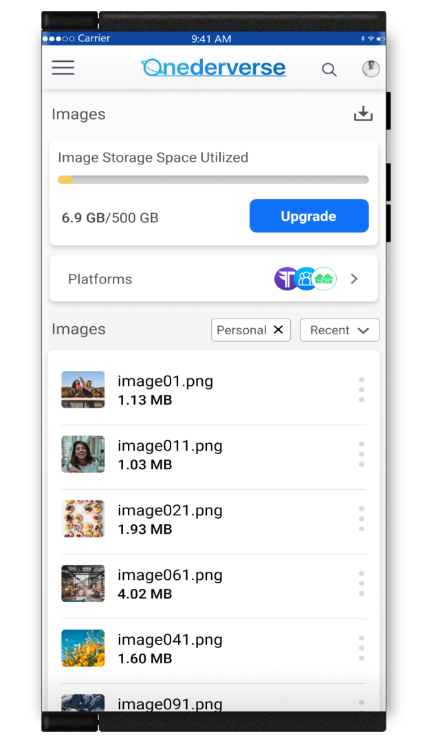
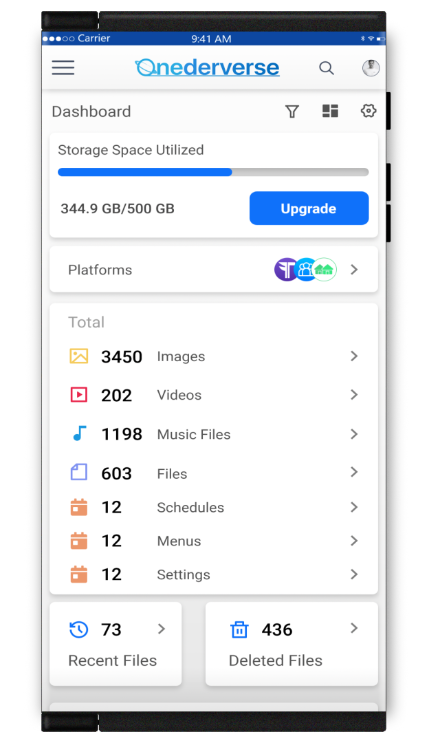
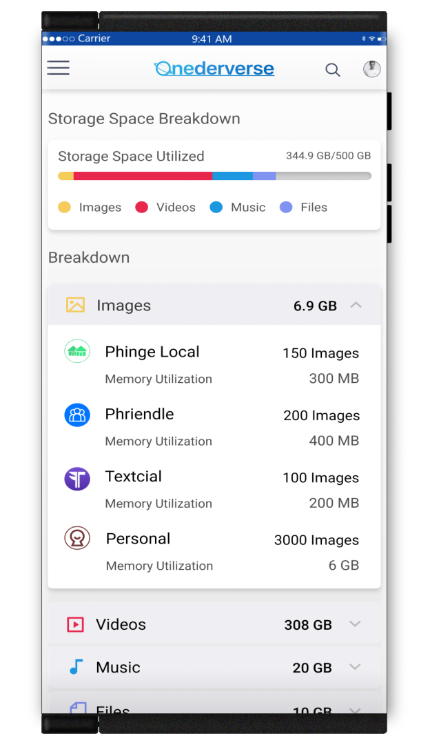
File Storage Space Utilization
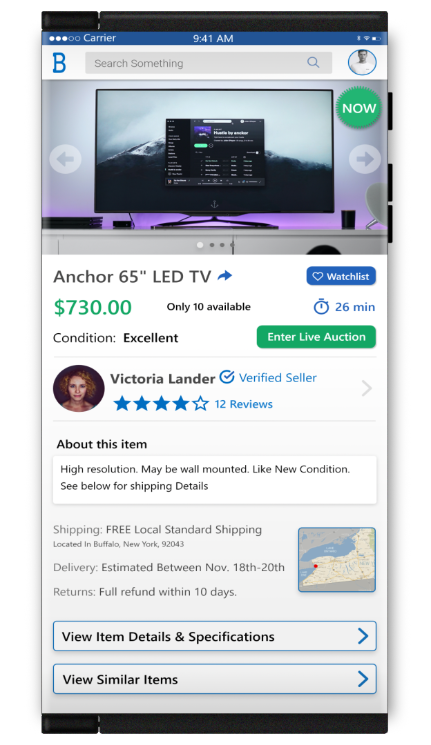
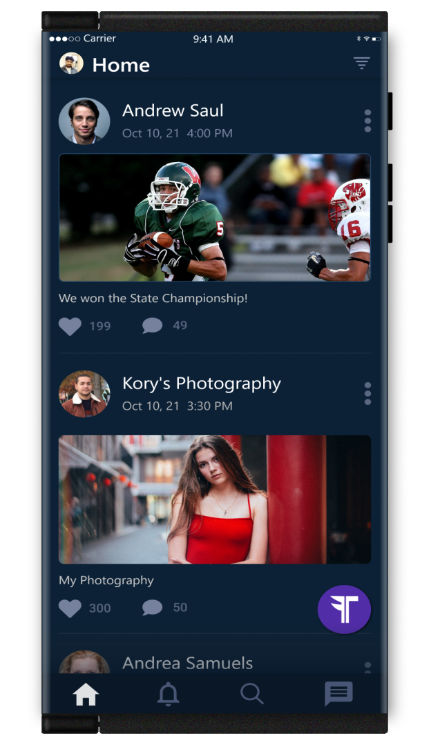
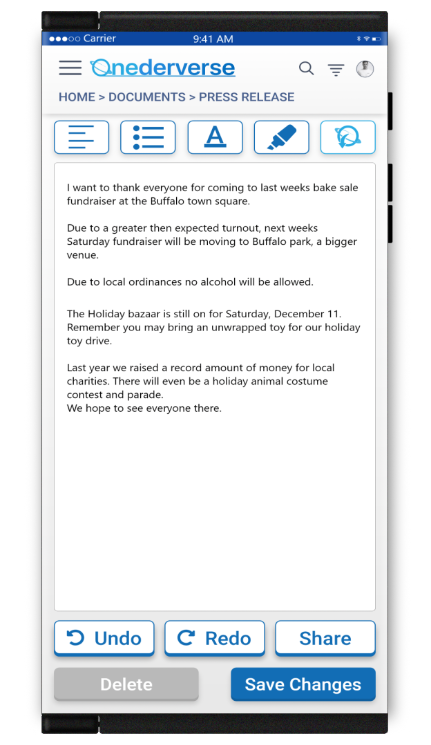
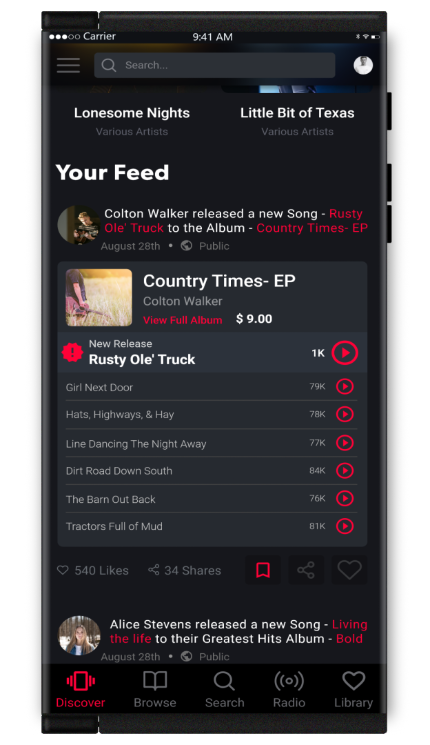
Onederverse will show you where everything you have uploaded or saved is located including your files, media, images and more. Merchants can view their records, files, menus, schedules and anything else they have uploaded or saved throughout Porthole and Netverse. Analytics tools are built in to show detailed and useful information
Scroll →
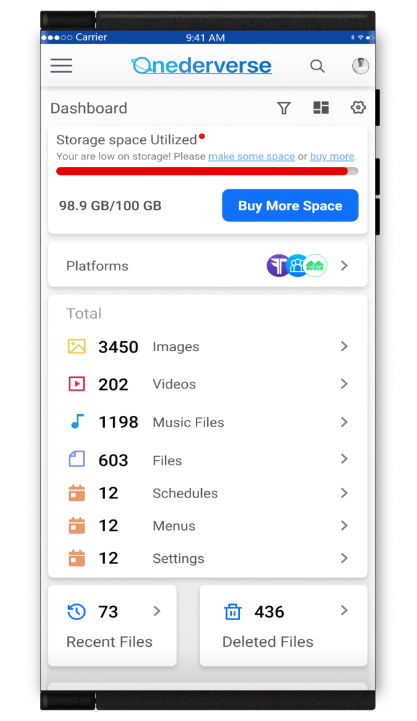
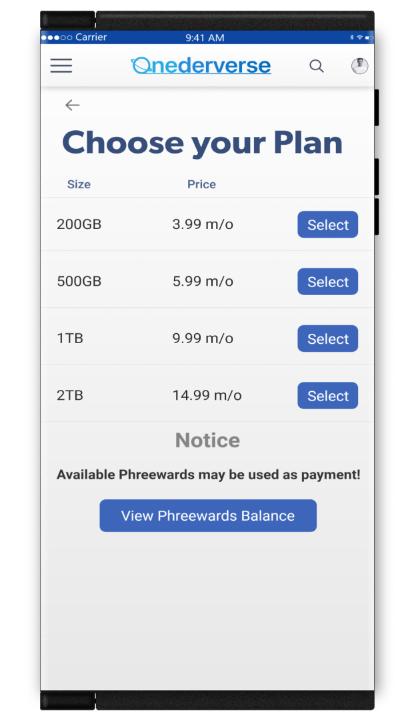
Purchase Storage Using Netverse Rewards
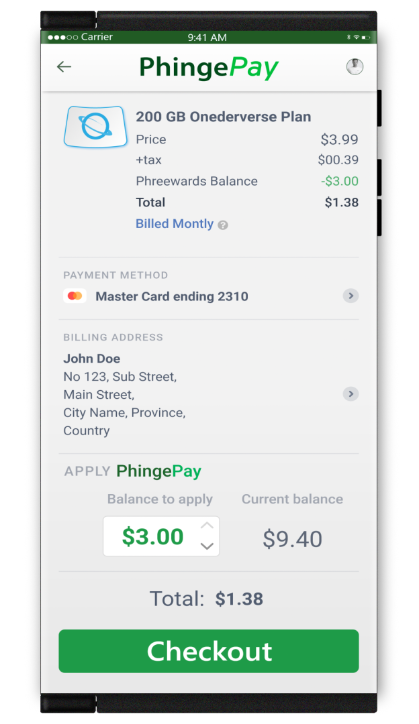
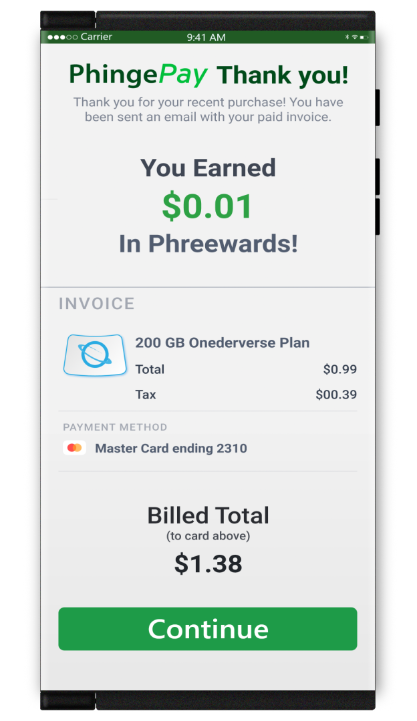
Onederverse offers additional storage for consumers and merchants that may be added at any time. You may use any available Phreewards you have to apply to purchases.
Apply your Phreewards at checkout and receive additional Phreewards for any remaining outstanding balance owed.
Scroll →
Text Containers
Applying Text Containers
Creating Text Containers
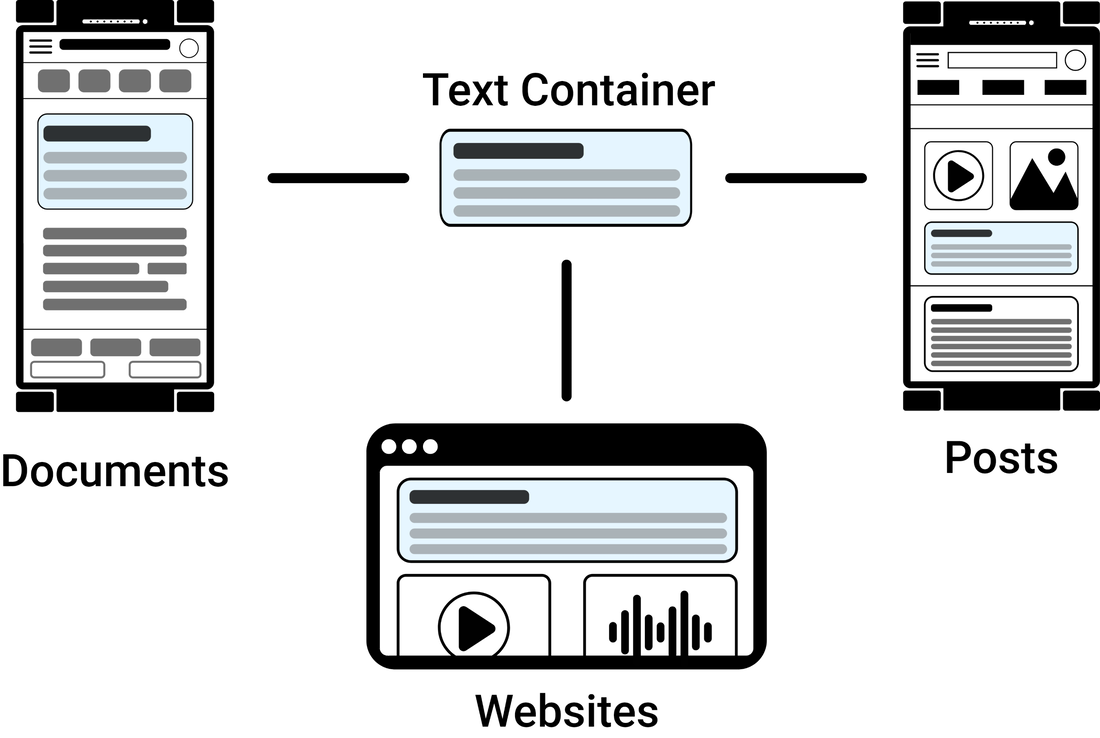
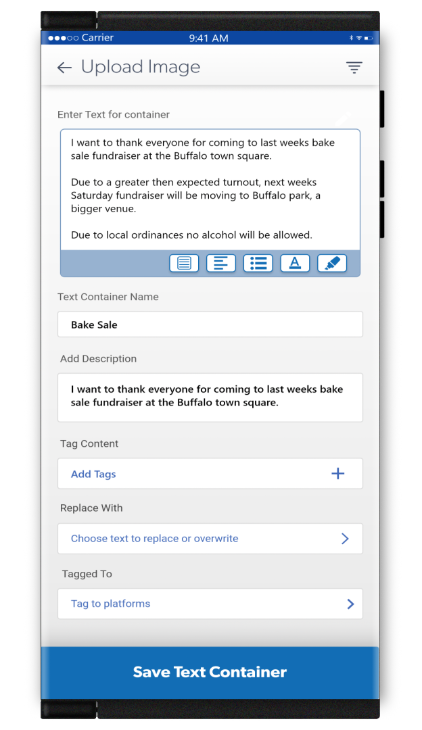
Onederverse will offer the first-of-its-kind text containers. These containers can be added or may replace any current text containers located anywhere throughout Netverse and its approved partners platforms.
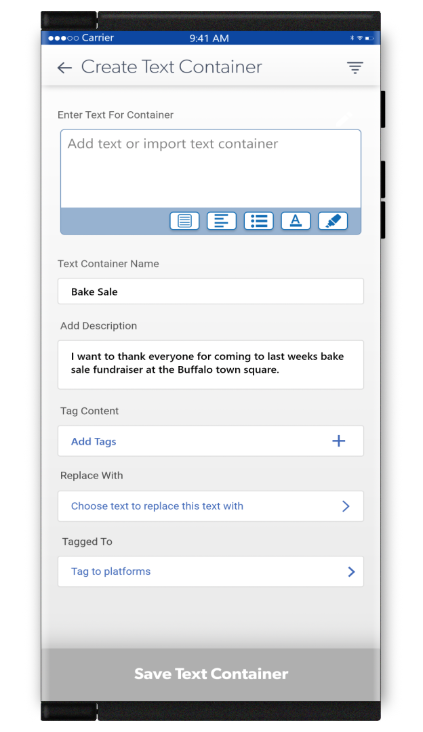
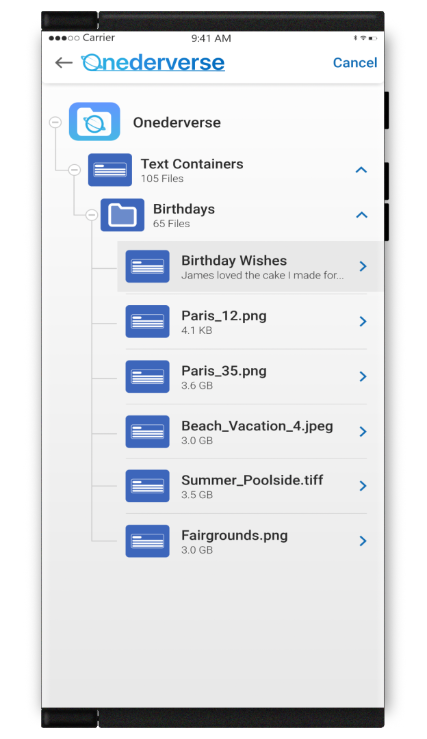
Creating a text container is easy. Enter your text. name it, add a description and add tags. You may also search for any text container you like to replace with the newly created one.
Post your new text container in any document. You may then post or replace it anywhere on Netverse.
Upload a saved or new image(s) to connect to your new text container and save.
Your new text container is now available to use from Onederverse, anywhere on Netverse or its approved platforms.
Scroll →
Adding Text Containers to Documents
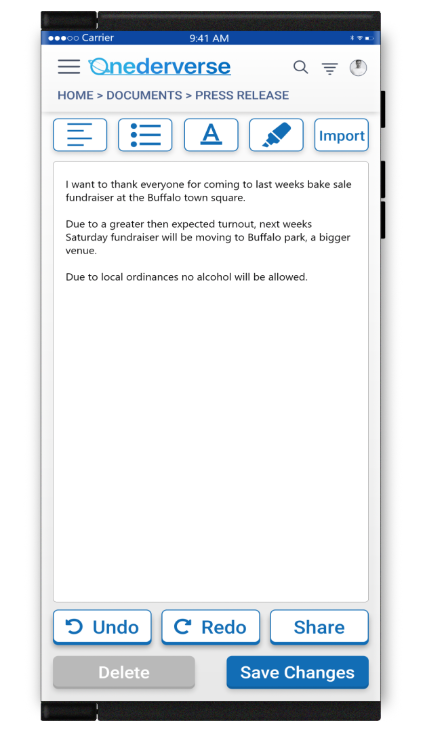
You may easily add text containers to any document. Simply highlight the text you want to modify or replace.
Search Netverse for the text that you would like to modify or replace. The search results will bring back everywhere that text is located throughout Netverse and its approved platforms. Select the locations that you would like to edit.
You may easily add or replace the text container to any document. Simply place the container where you want it to be added and save your changes.
Scroll →
Viewing Text Containers in Documents
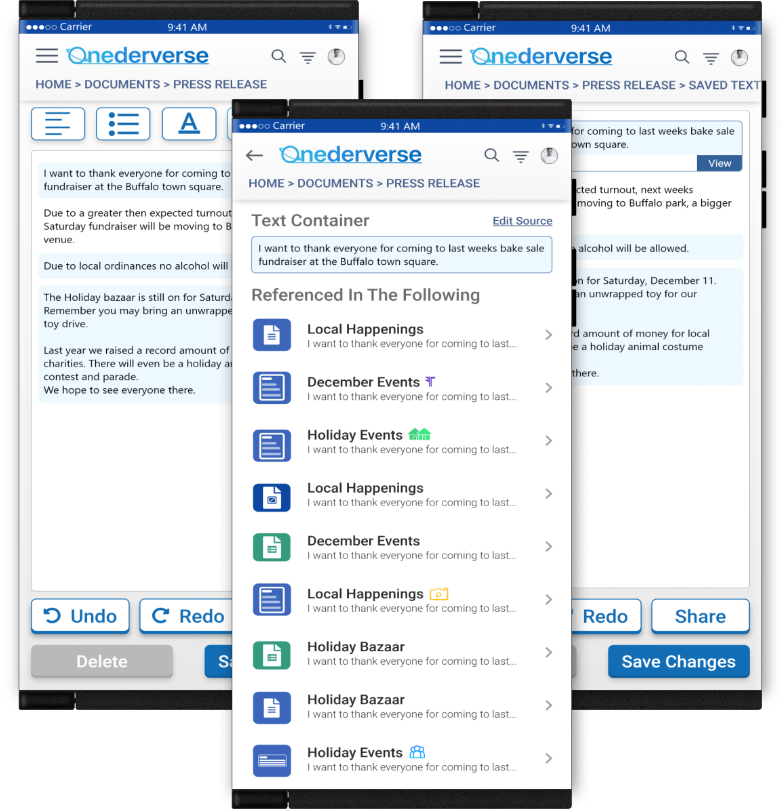
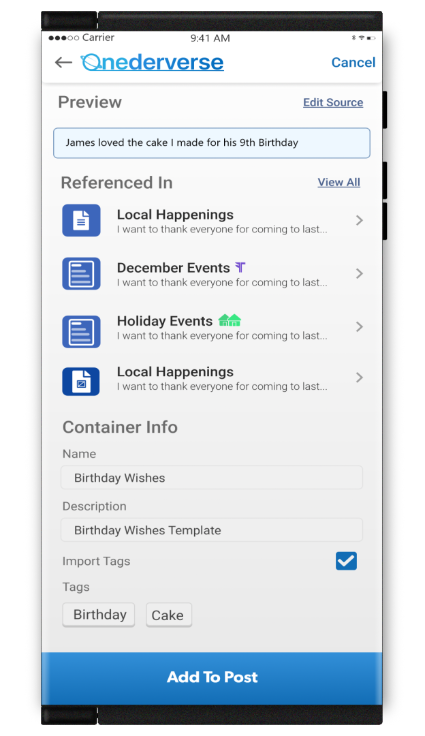
Viewing text containers located within documents is easy. Simply select the show option and the document will be highlighted with every text container located within it.Click on a highlighted text container to view how many times it is referenced through Netverse and its approved platforms.You may then view exactly where each reference is located including the platforms it is on.
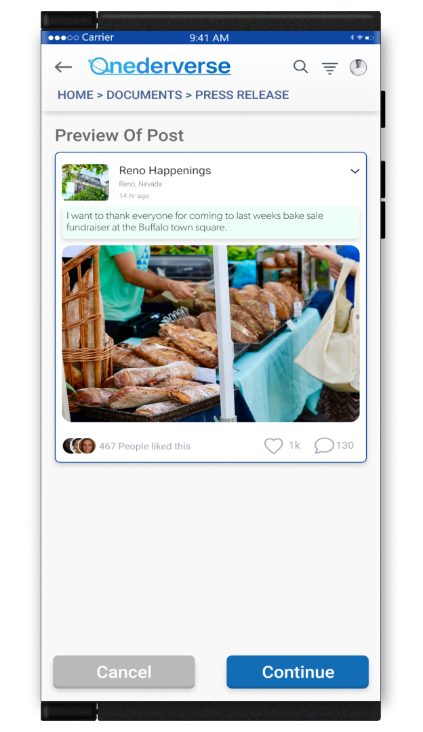
You may then modify or replace the text container and preview it before saving and posting it.
Scroll →
Sharing & Merging
Sharing Files by Permissions
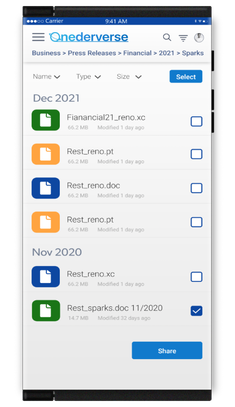
Business may share any files and documents by selecting them. Assign them to individual people or groups by separate, individual or group permissions.
Individual permissions add extra security to what is being shared. When a file or document is shared with more then one recipient or group, those recipients will have different access and abilities for that shared file or document based on the permissions they were granted by the person sharing it.
Scroll →
Merging Shared Documents
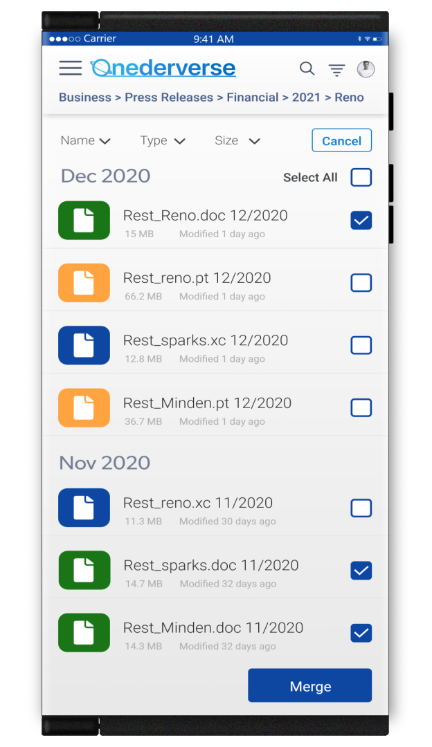
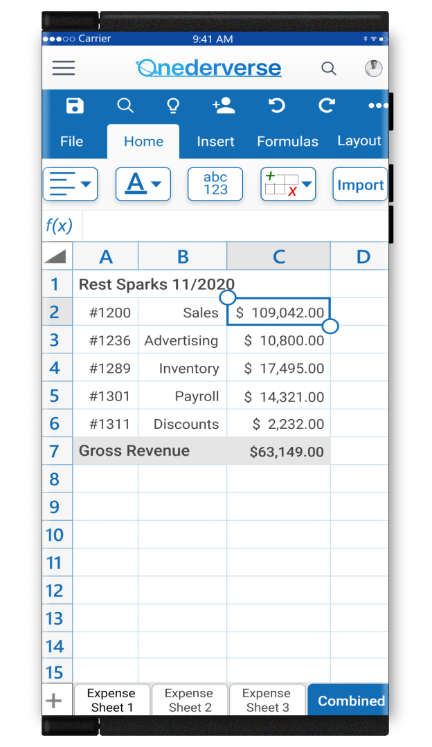
Business may share any documents and files to be edited or merged by others by selecting them. Assign them to individual people or groups by separate, individual or group permissions.
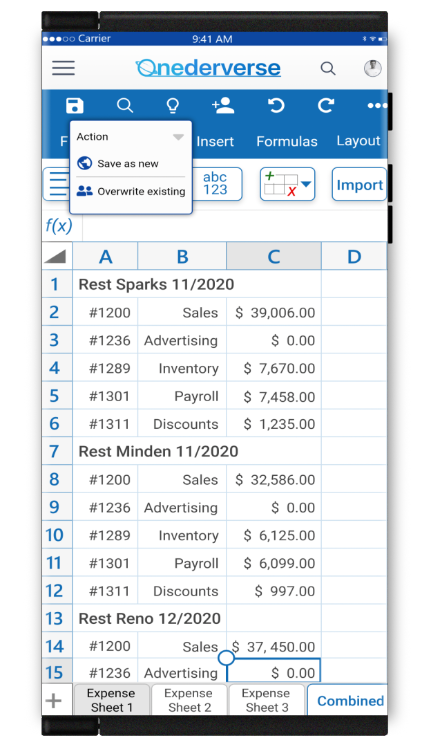
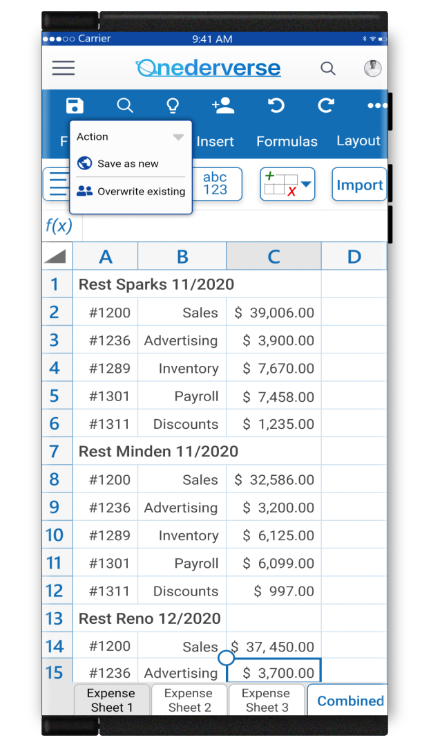
Documents or files from multiple users or merchants may be merged together into a single document or file for easy editing. Information and content within the original shared documents and files may be updated or changed.
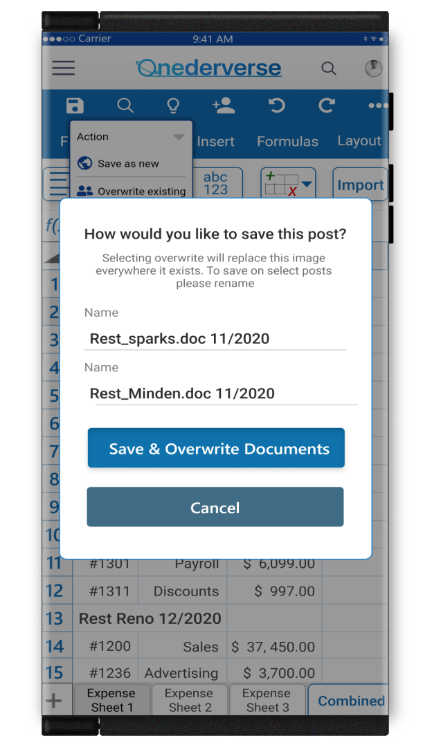
Any changes made may be saved back to the documents and files that were shared.
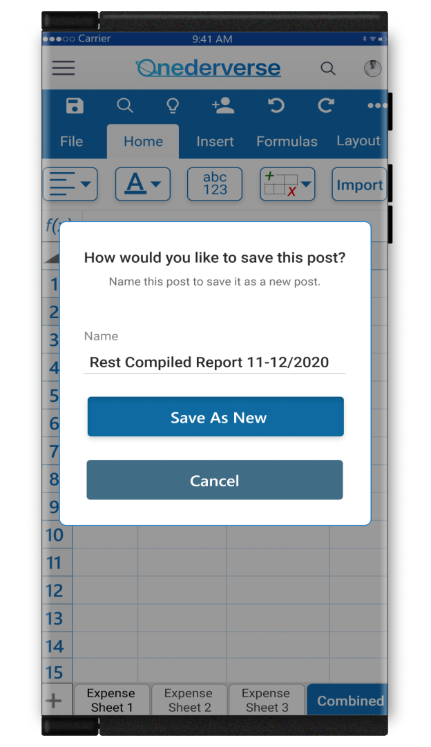
You may create a new document or file from the new edited files. Add new data or merge any or all of the shared files, then name and save it.
You may now share the new document or file to the previous sharers or you may add new recipients to share it to based on previous permissions that you were given by the document or file sharers.
Scroll →
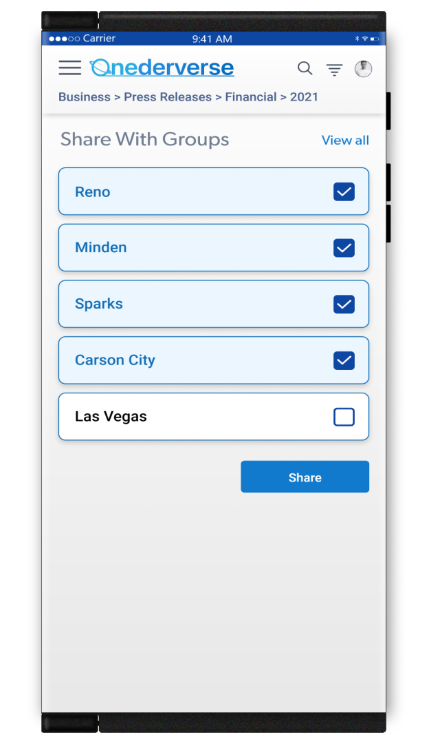
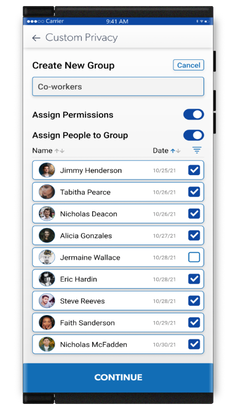
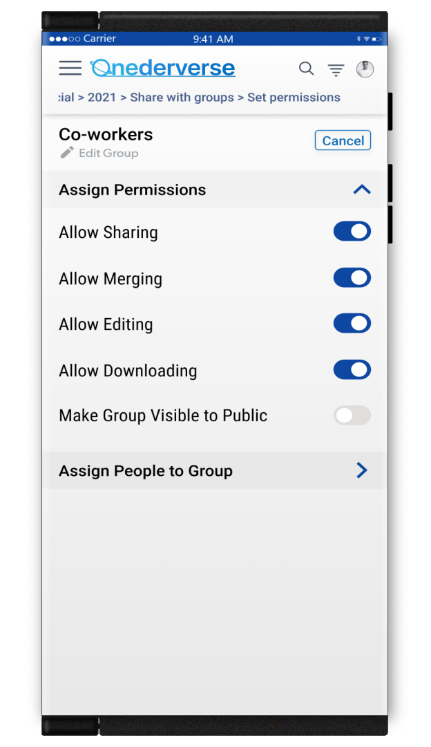
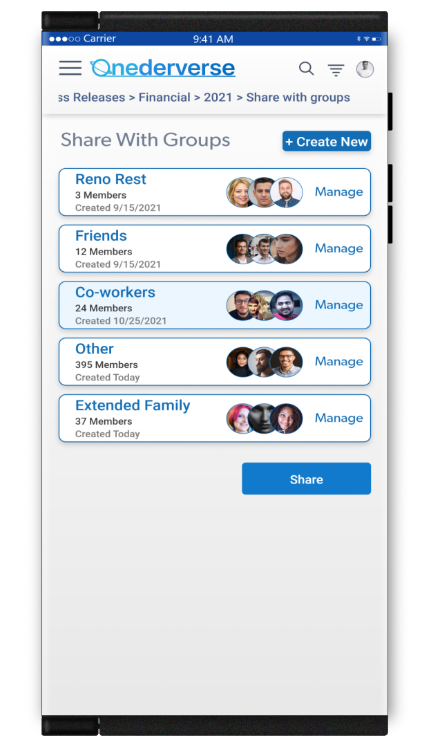
Applying Permissions to Groups
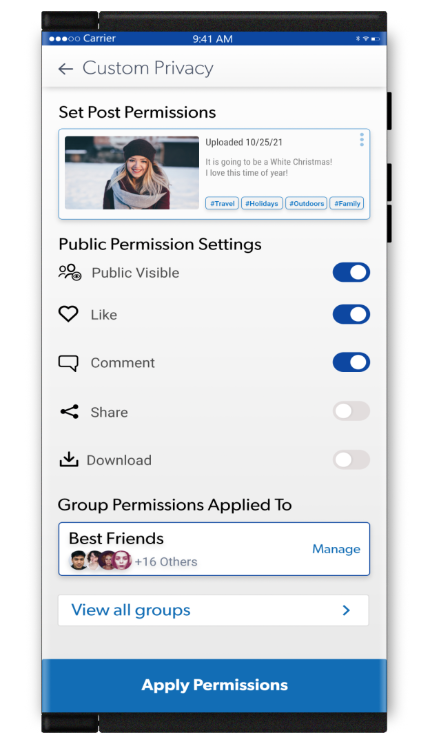
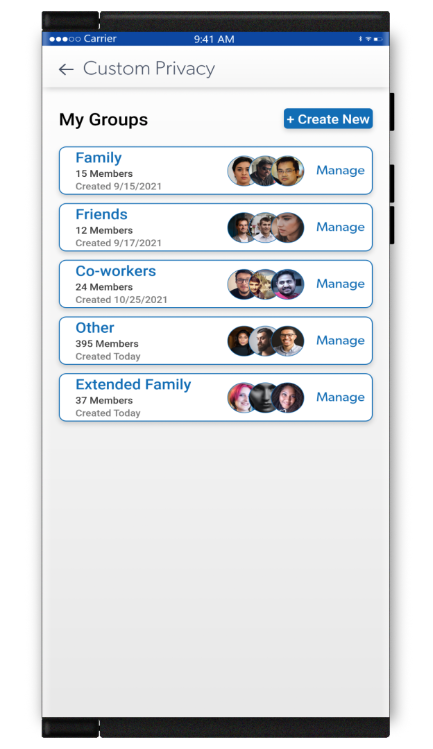
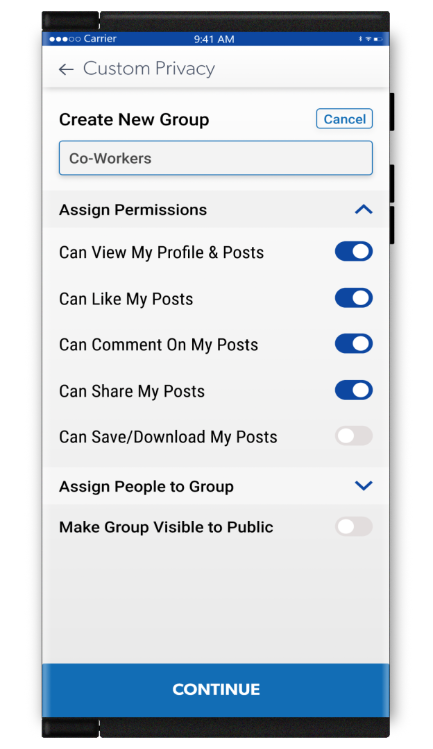
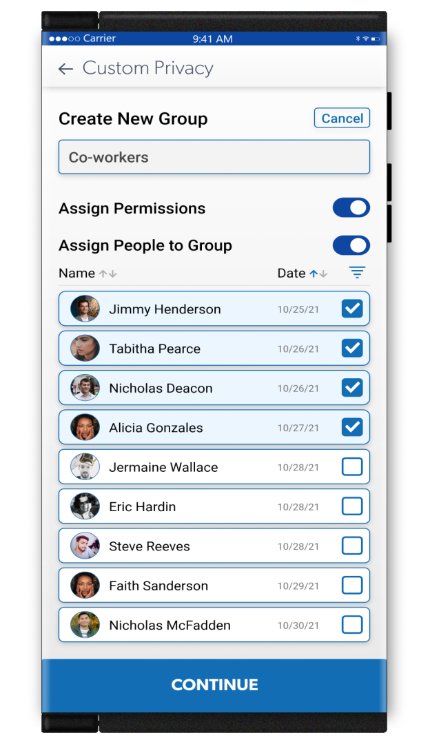
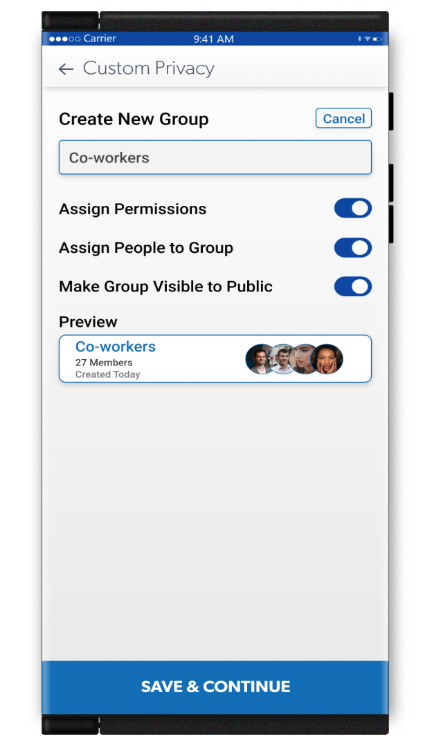
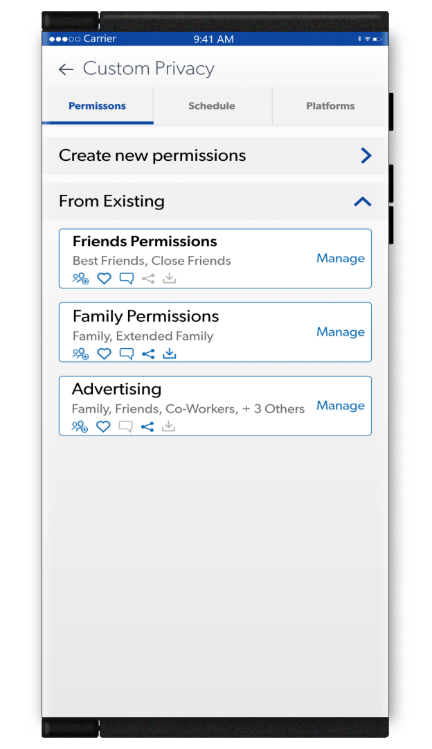
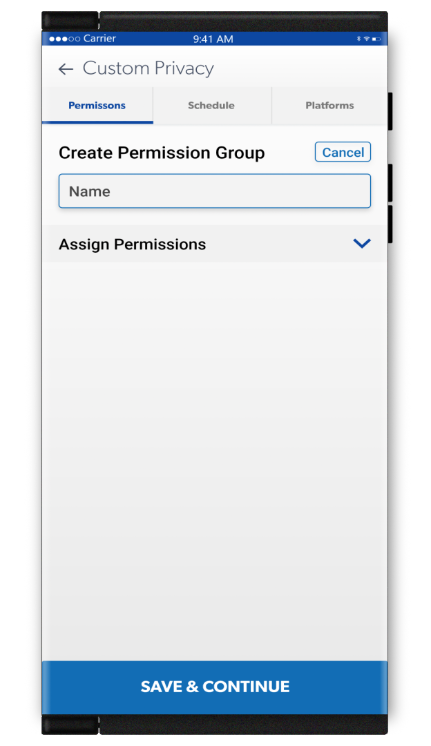
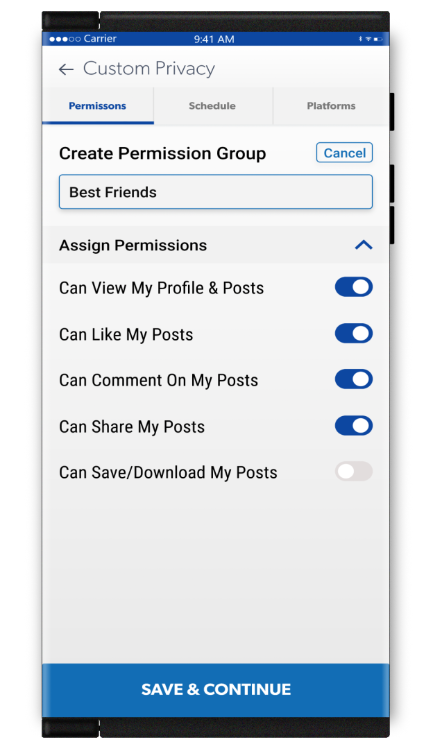
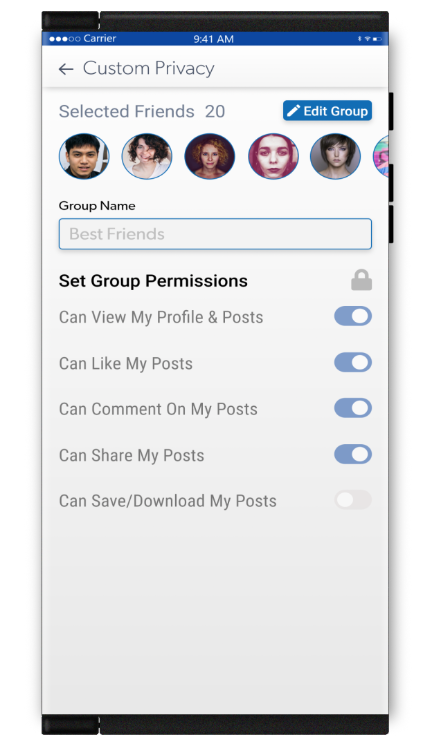
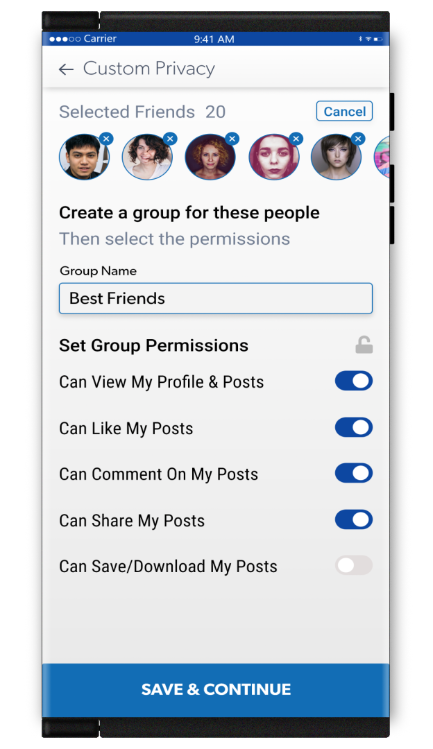
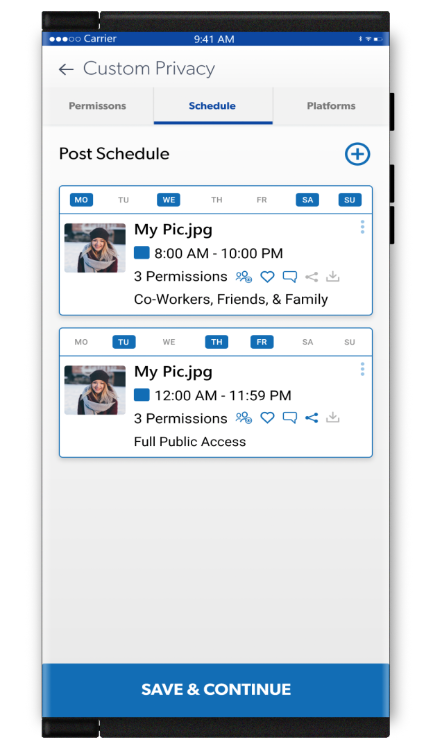
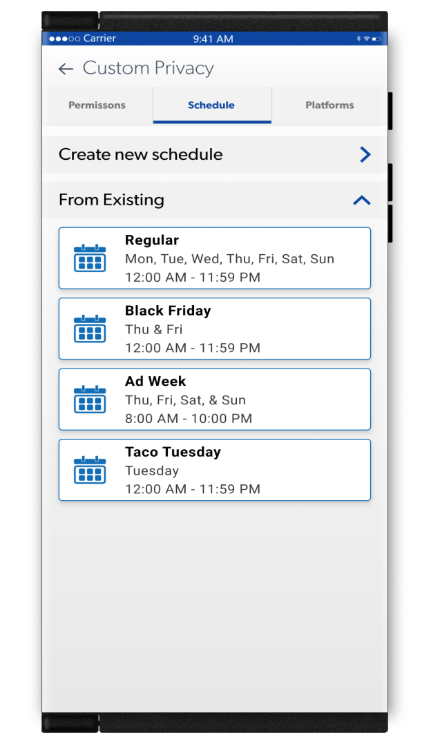
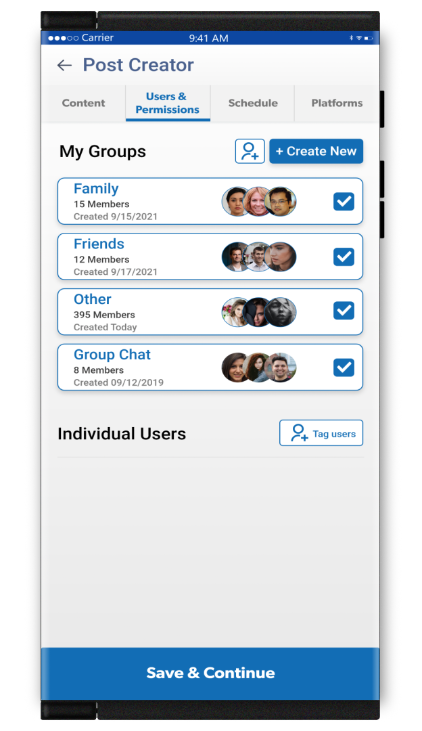
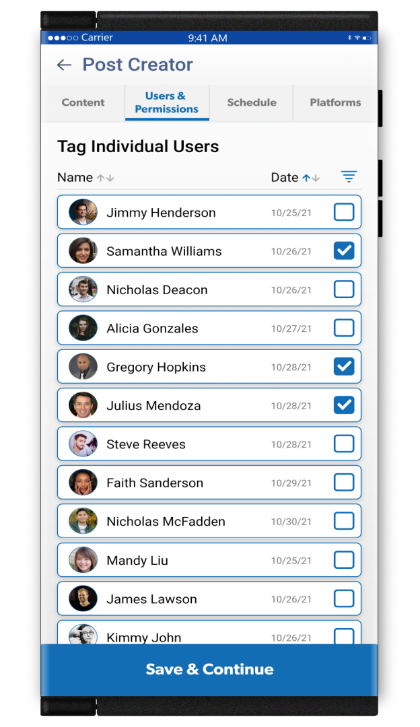
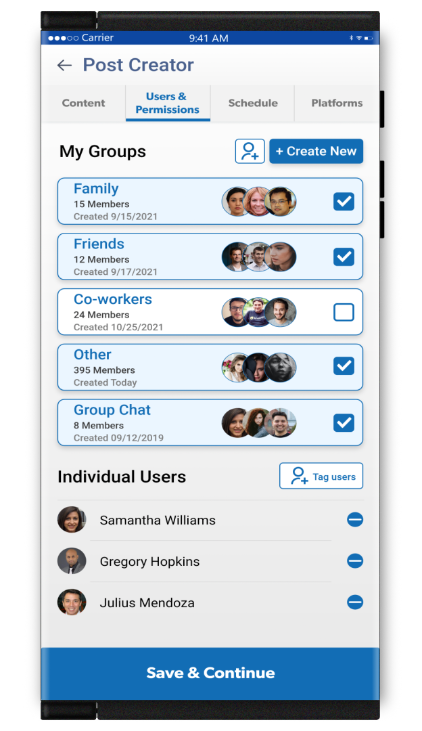
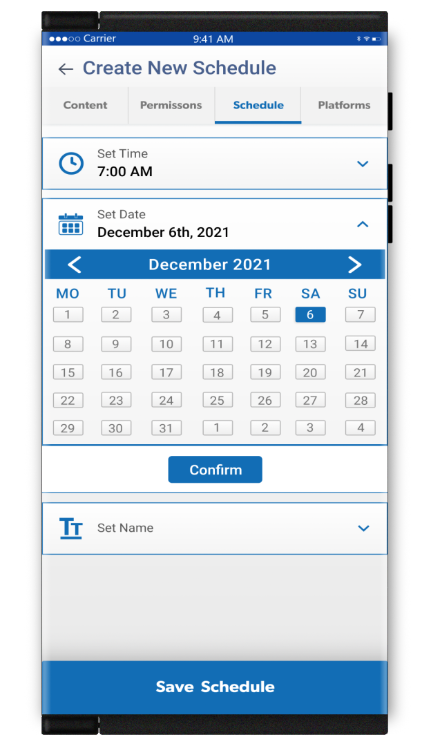
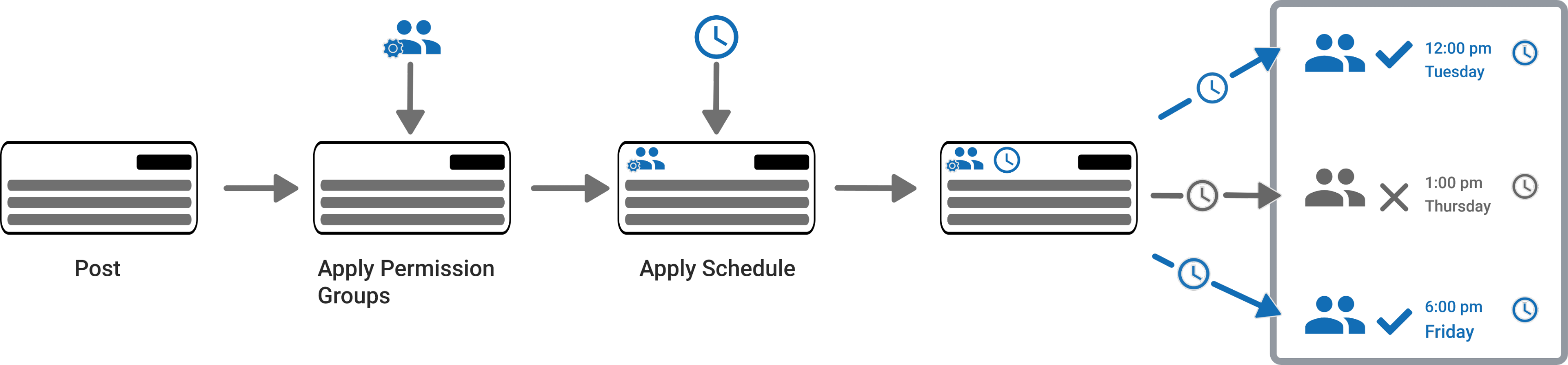
Groups will be a great way to share, promote and interact within Netverse. Groups will be dynamic as to how you share everything within them.You may create and name as many groups as you like. You can then assign individual permissions within each group. This will allow you to share content and interactions differently by which groups you send them to.You may also add, delete and move individuals between groups. Make groups visible to the public or selective groups.Customize privacy within your groups at any time.You decide what individual privacy settings you want for each of your named groups.Here is an example of how privacy within groups work. User sets a post to show based on an advanced scheduled date and time.The post is then set to show on the selected platforms. The post will then show on the selected date and time chosen by the user. The content of the post will be viewed differently based on the permissions that were set for the post to the individuals in the groups that can view it.
Scroll →
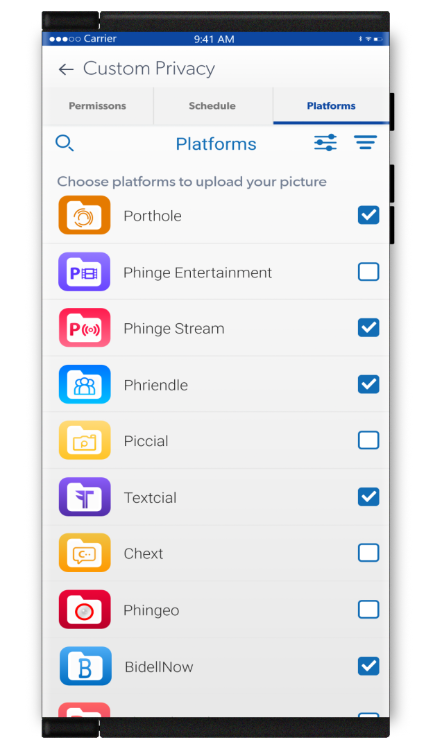
Images & Video
Uploading & Tagging Images
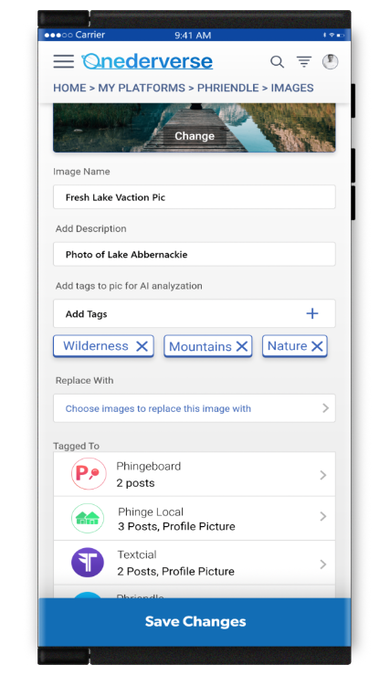
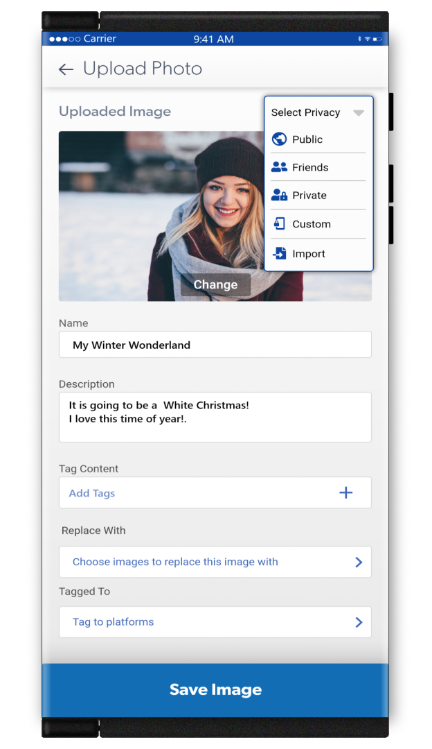
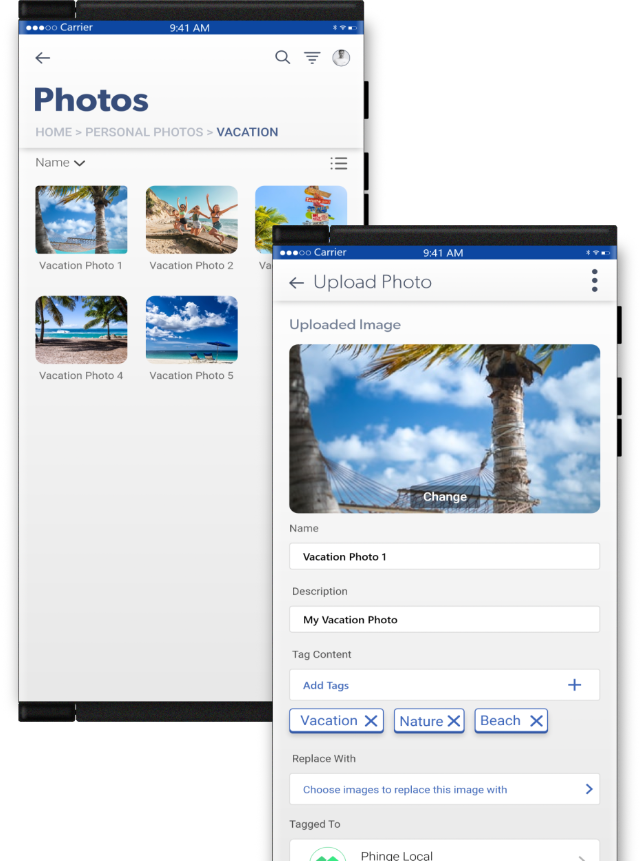
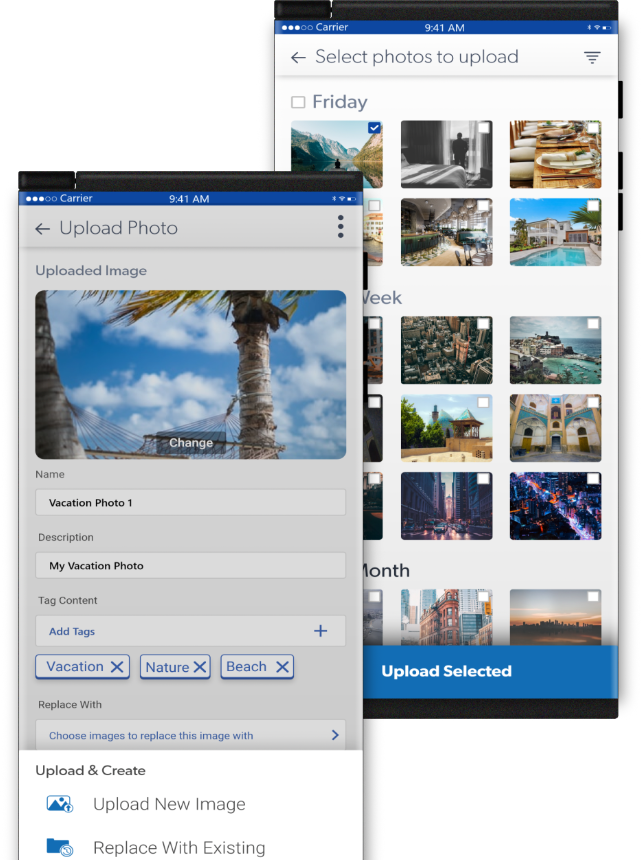
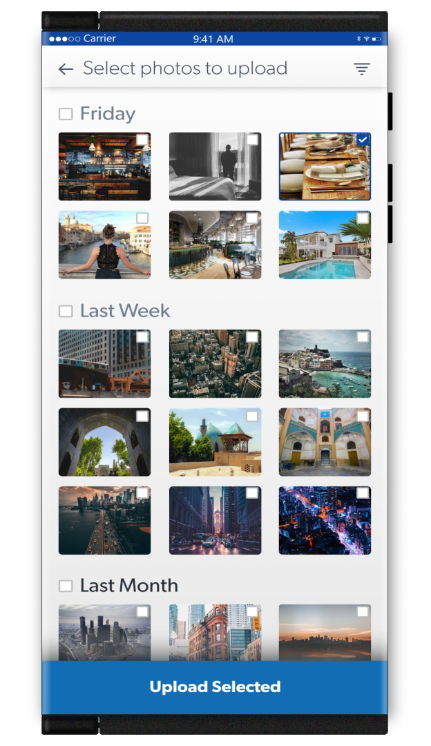
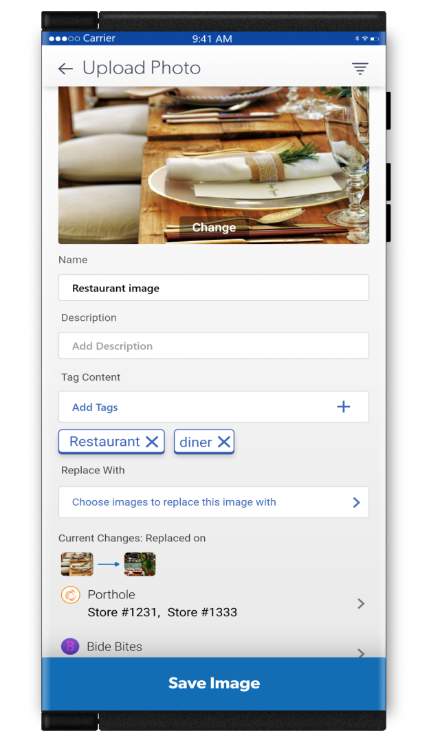
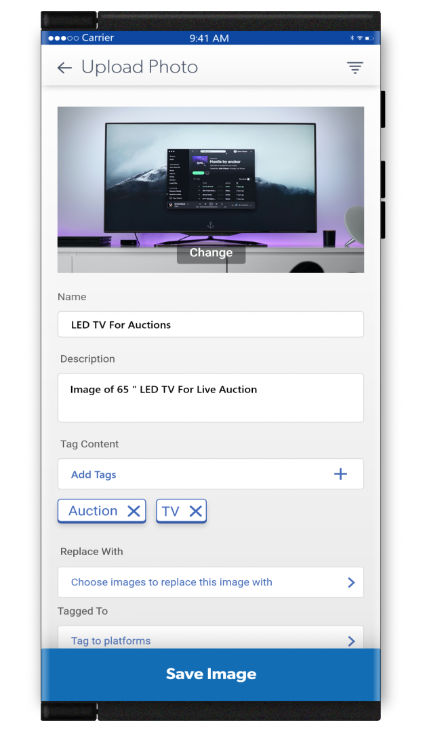
You may easily upload and tag images for use throughout Netverse and its approved platforms.
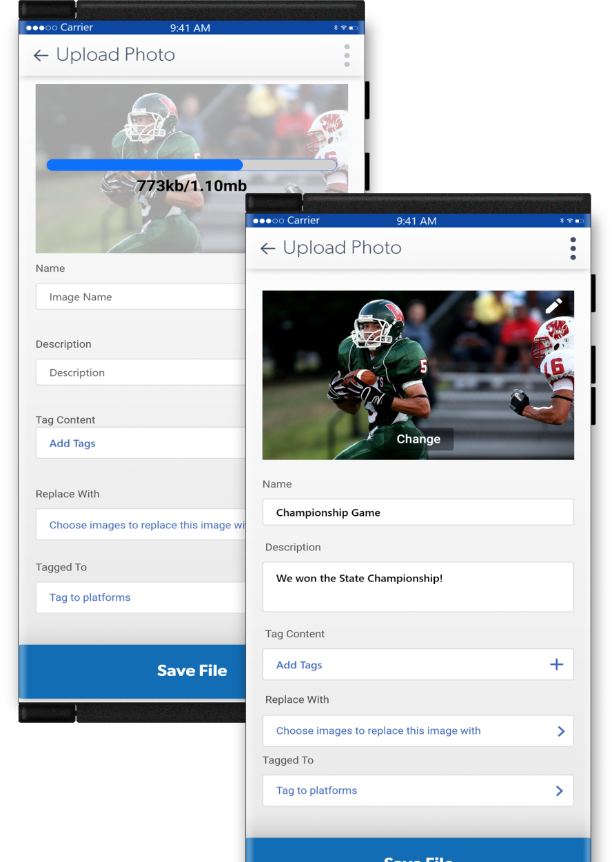
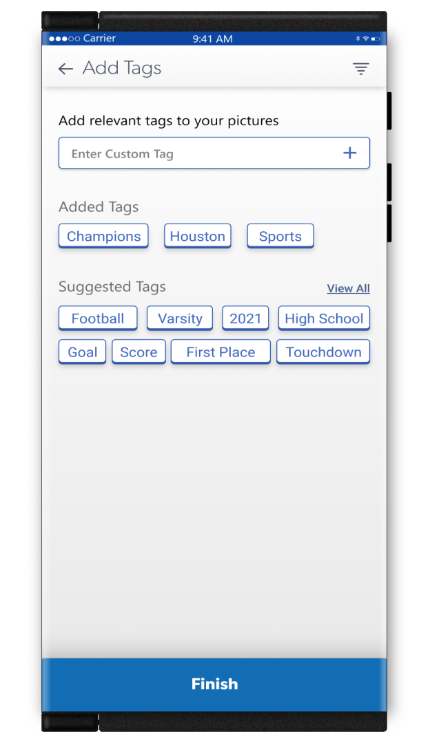
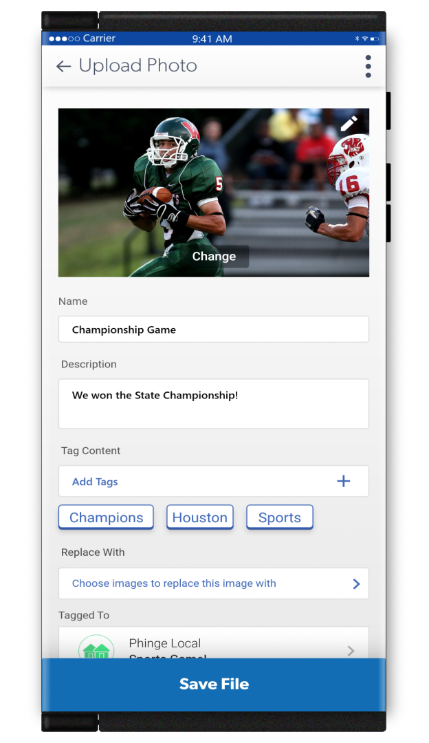
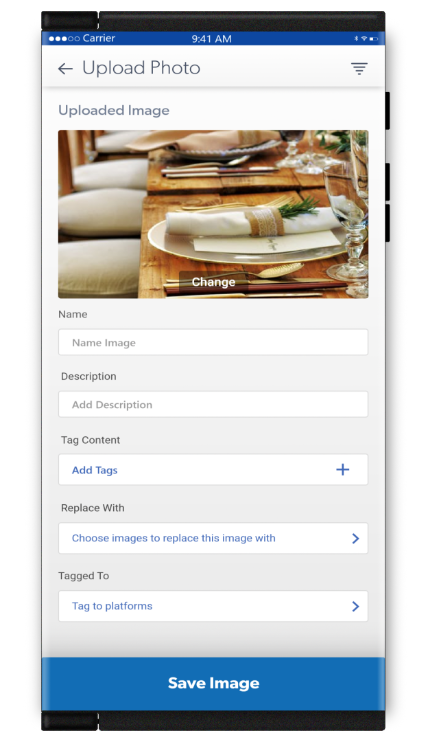
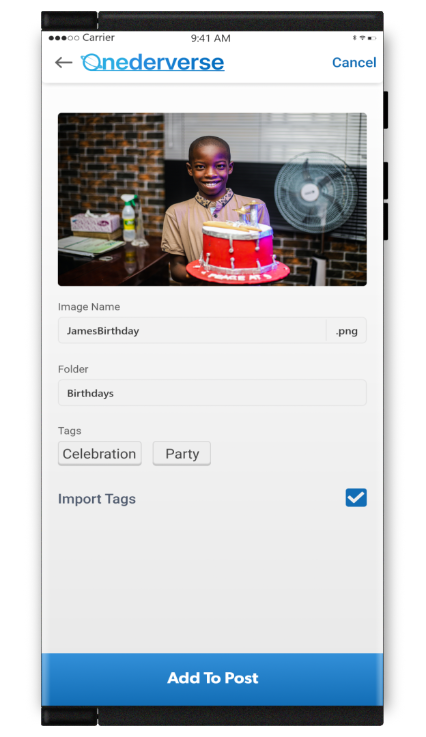
Name your image, add a description and tags. You may now add this image as new or replace a current image throughout Netverse and its approved platforms.
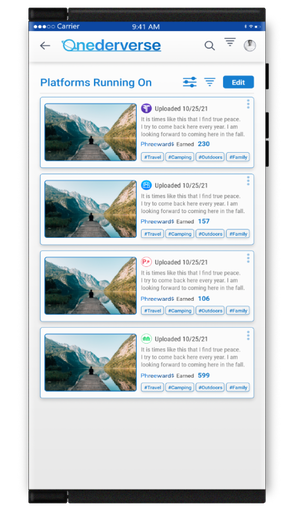
View everywhere your new image has been added.
Scroll →
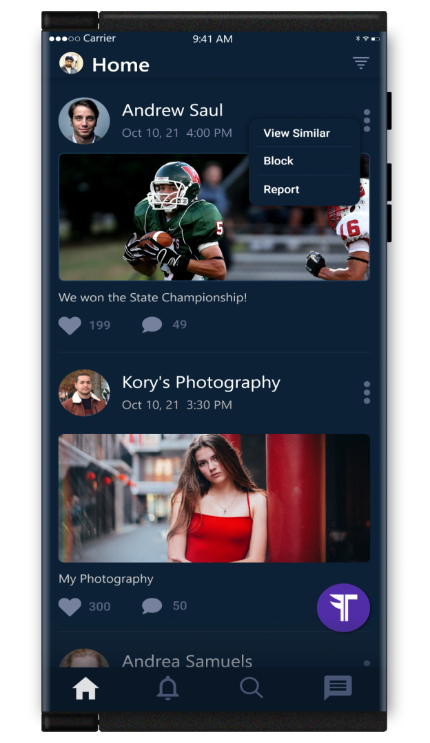
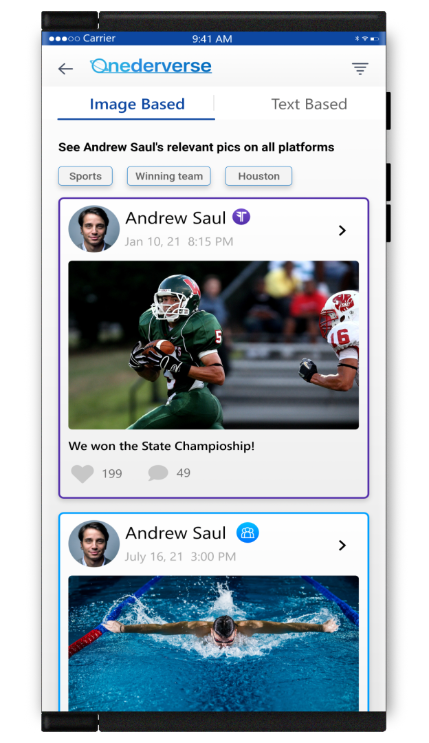
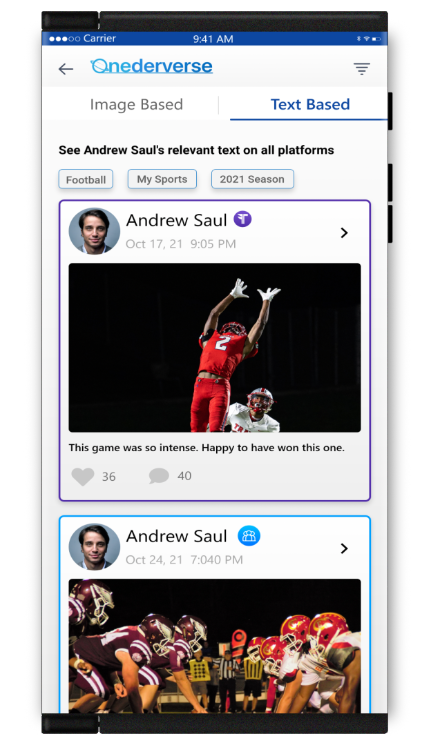
Replacing Existing Images by Uploading New Images
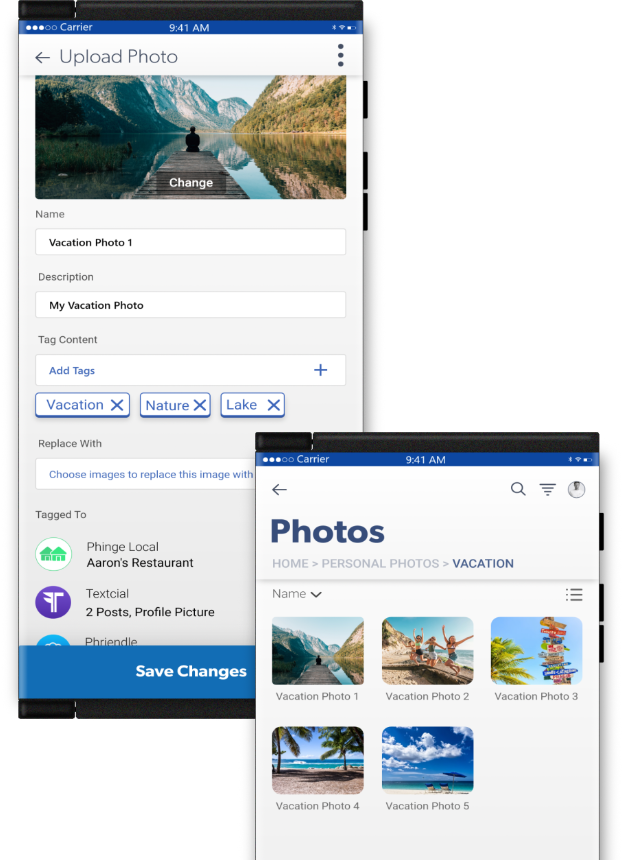
Edit any currently running image, everywhere it is running throughout Netverse. Select the image from its location file in Onederverse.Upload a new image to Onederverse that you want to replace the current image.Preview the new image and the old image it is replacing and confirm.You may keep the current name, description and tags or add new ones. Save. Your new image now shows up in your vacation file in Onederverse.
Scroll →
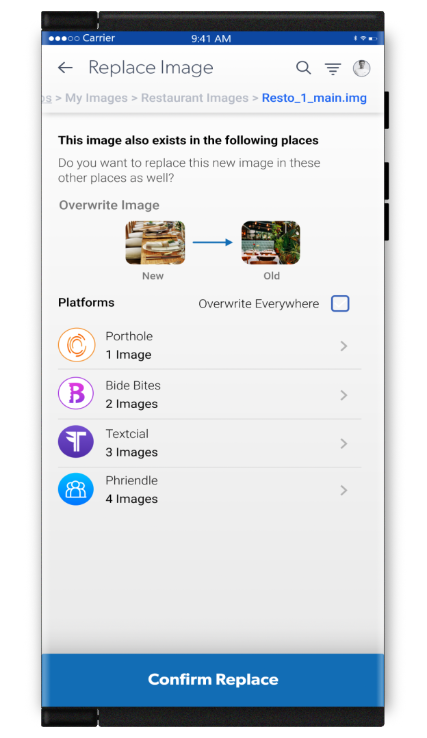
Replacing Images From Anywhere They Exist
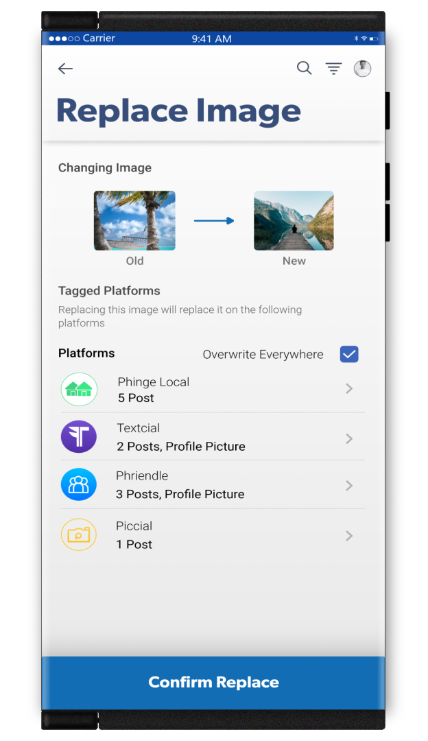
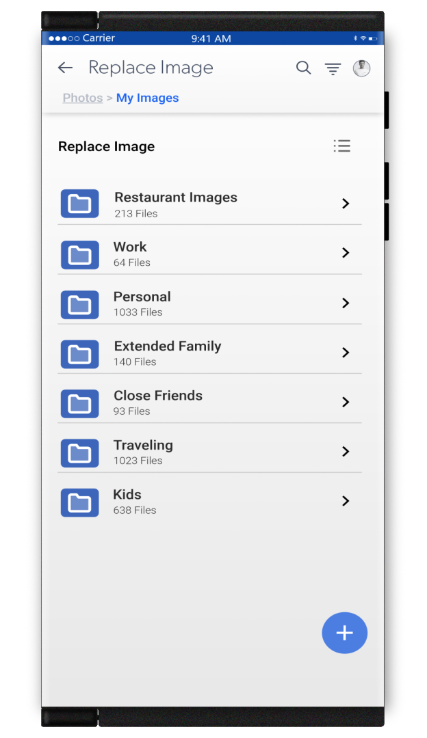
Replace any currently running image, everywhere it is running throughout Netverse. Select the image from its location file in Onederverse.
Locate the file where the image you want to use to replace is located.
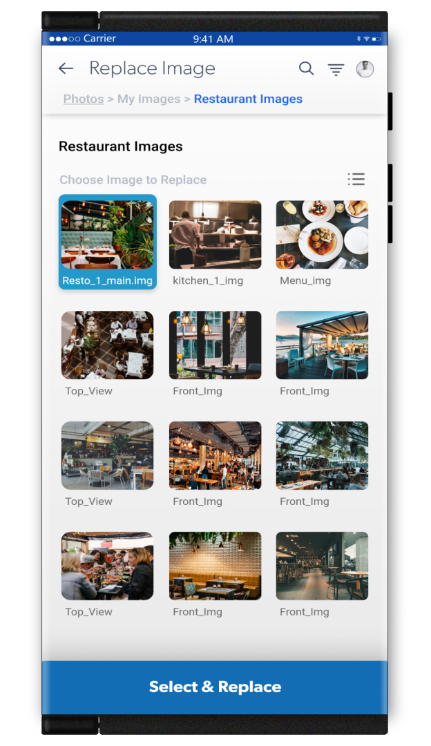
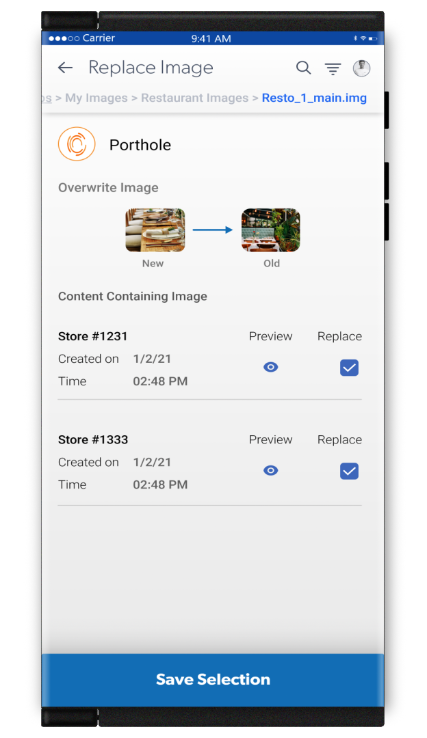
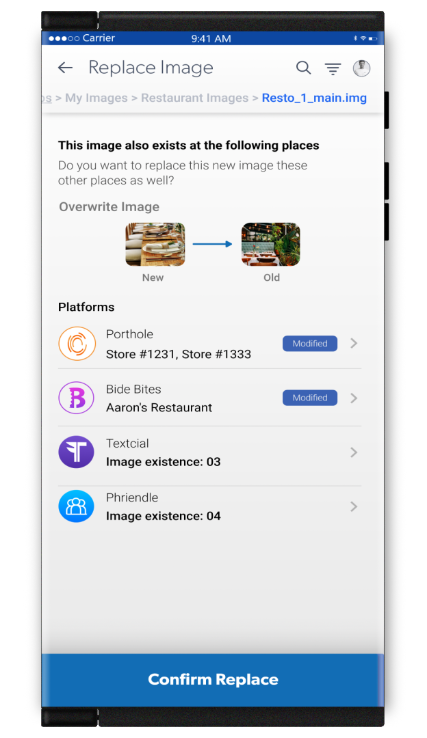
Choose the image to replace. Compare your new image with the one you are replacing. You will also see everywhere the image you are replacing is running throughout Netverse. Select the locations on Porthole that you would like to change the new image to and save selection. Your new image is now attached to those locations.
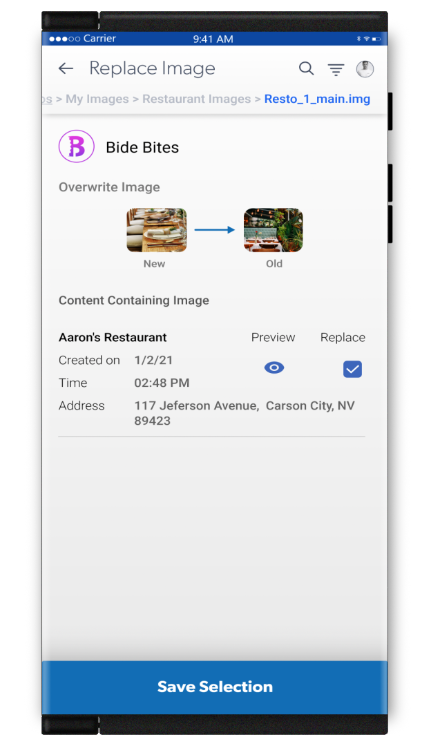
You may now apply the changes to your restaurant location on Bide Bites and confirm to replace. Your new image will now show.
Preview all of your changes and save your image.
Scroll →
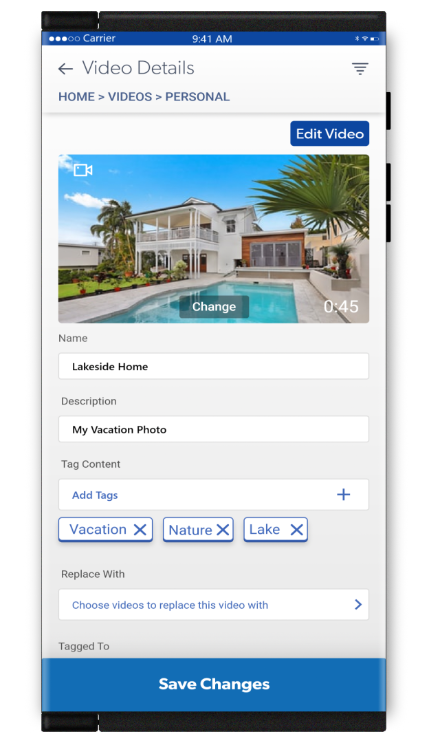
Editing & Replacing Posted Videos
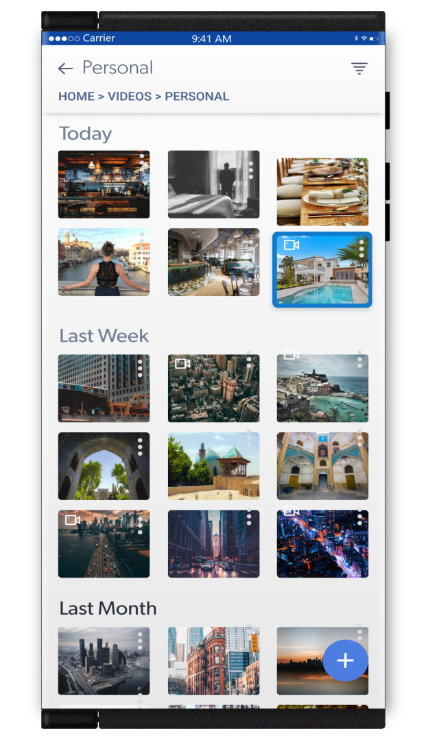
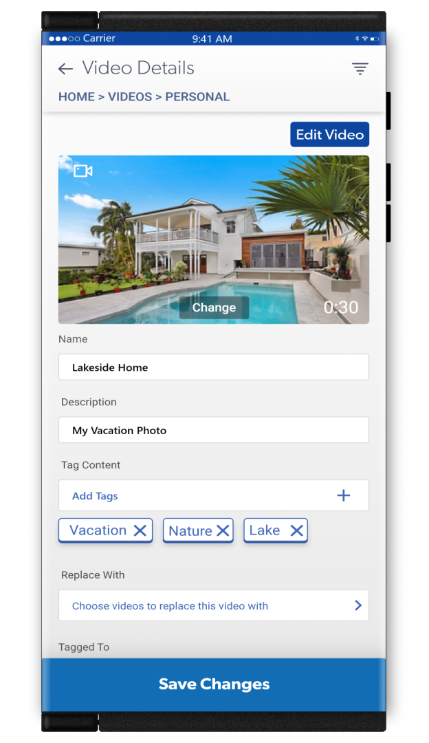
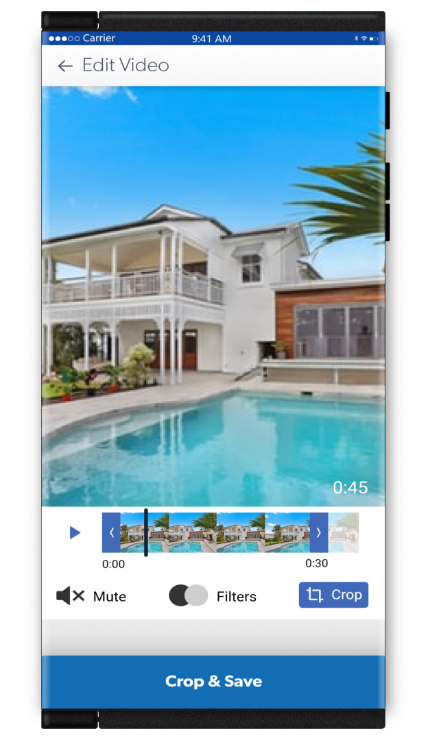
You may edit or replace any video running anywhere throughout Netverse.
In this example a video is being edited by adding new footage to it.
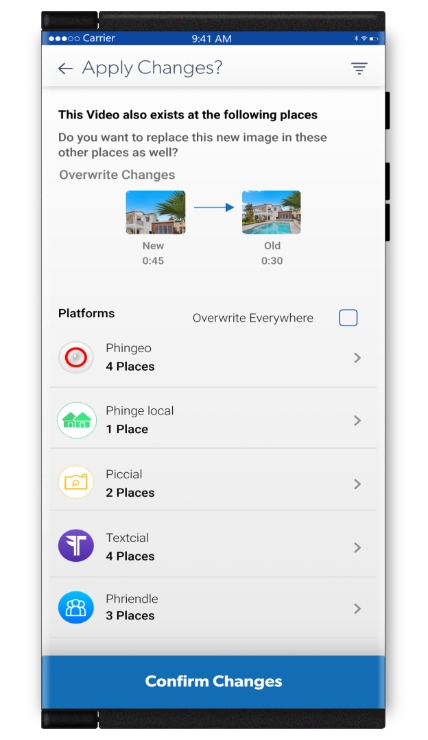
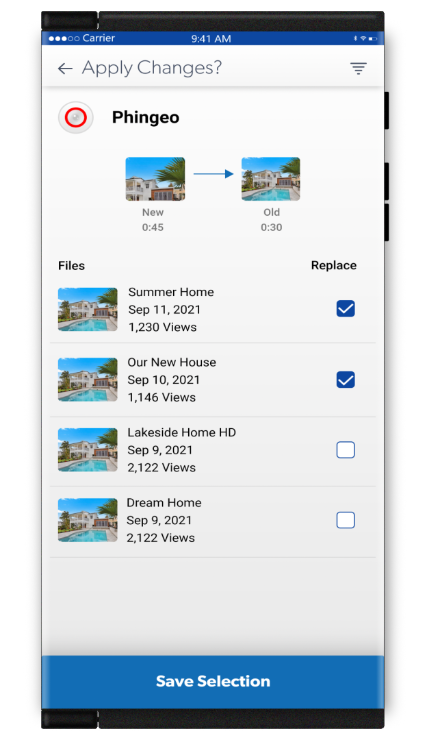
You are now given every location for the video you are editing. You may view the locations and choose what locations you would like to replace.
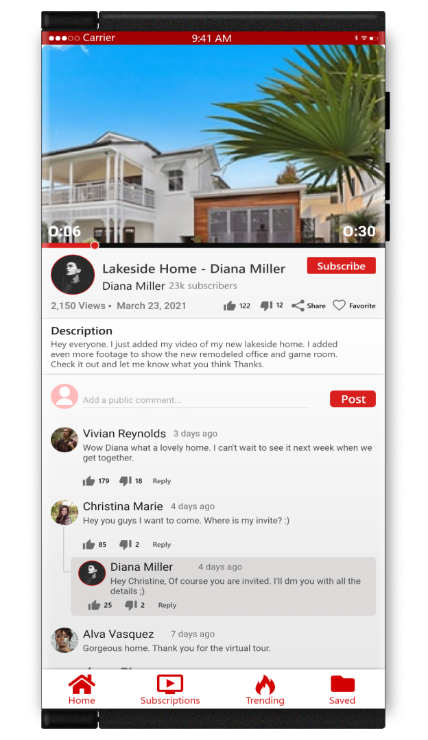
You can then preview the locations to where your new edited video will be shown and you save and confirm to add the new edited video. Your new video is now live on the locations that you selected.
Scroll →
Posts
Creating Posts With Content & Images Through Onederverse
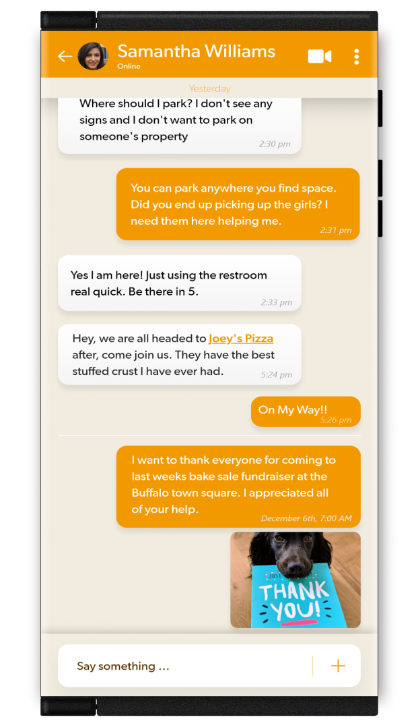
You may create a post with any content including images from Onederverse.Choose a post that is currently running on Netverse. You will be provided with details showing everywhere else that posts is currently active. After previewing you may add your text.Choose all of your images from Onederverse that you would like to add to your post.Choose what groups you would like to tag from your groups list.Tag as many users as you like from your users lists.You may pre-schedule a day and time for your post or message to go out to the groups and users you have added.You may also pre-schedule posts and messages by existing date and time schedules that you have previously set.
This example shows the created post going out as a message to the groups and individuals you have tagged. This message will be sent out at the pre-set day and time that you pre-selected. Recipients of the message that have opted into rewards-based messaging will see a link (for this example Joeys Pizza) and if they make a purchase from them, the sender of the message will receive a % of the amount that they spent! (Tax not included)
Scroll →
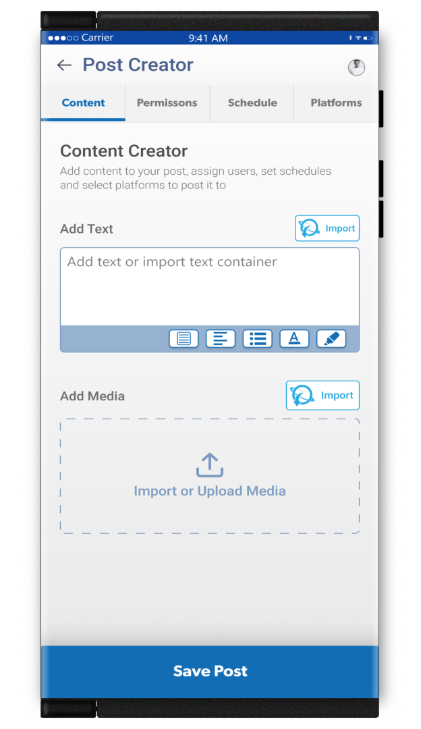
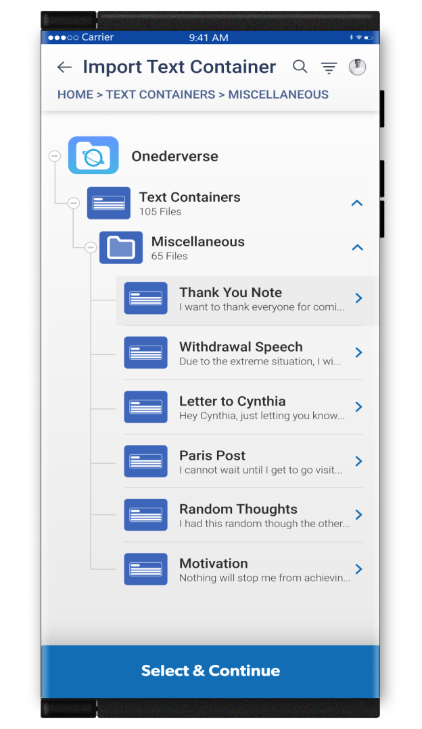
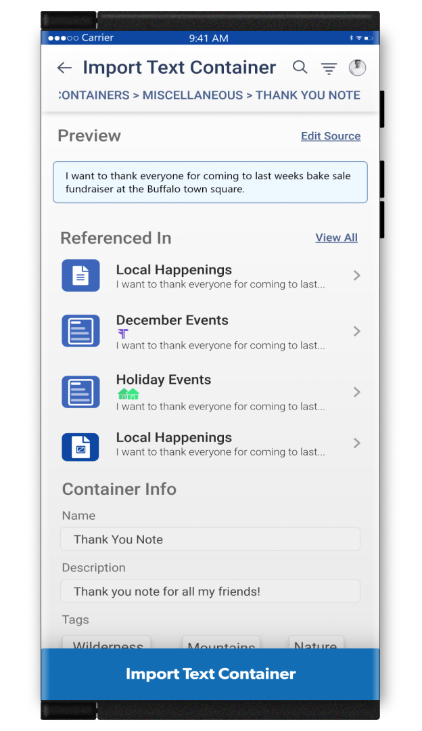
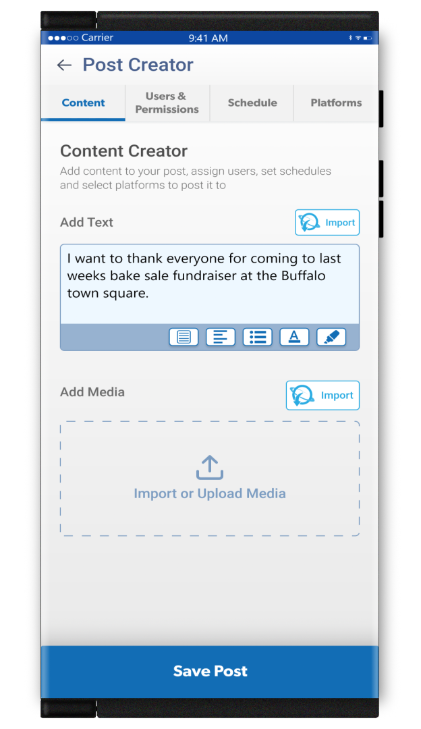
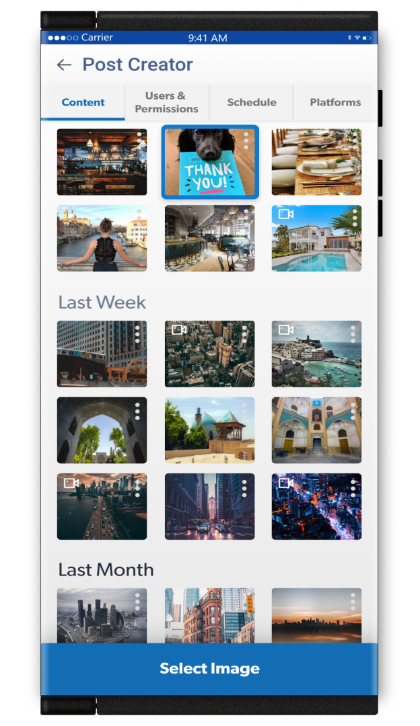
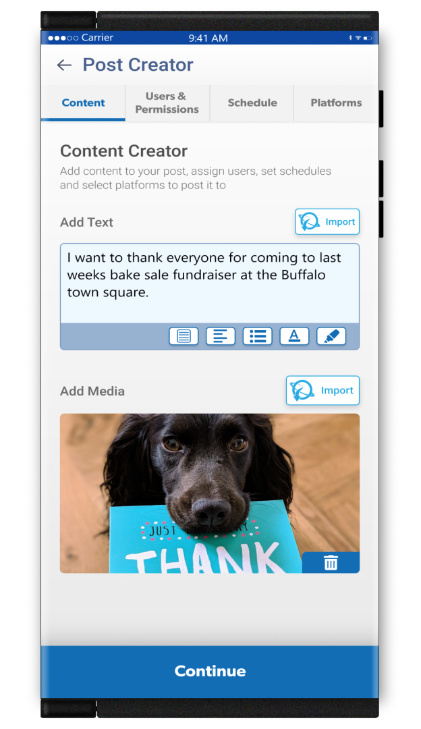
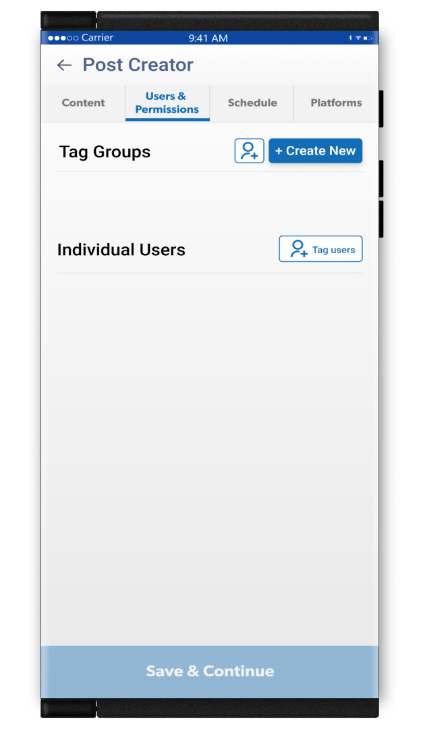
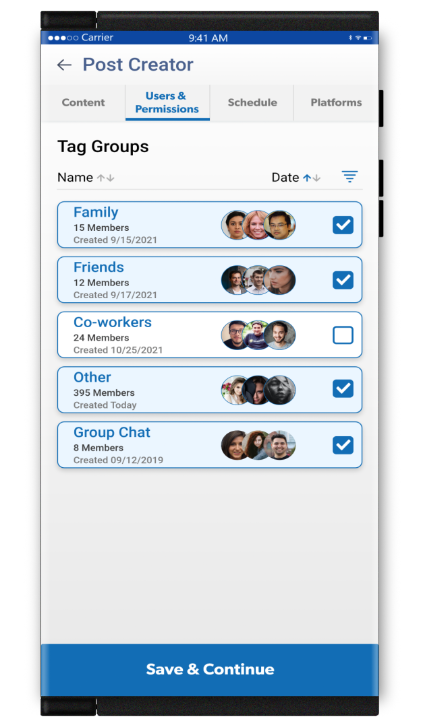
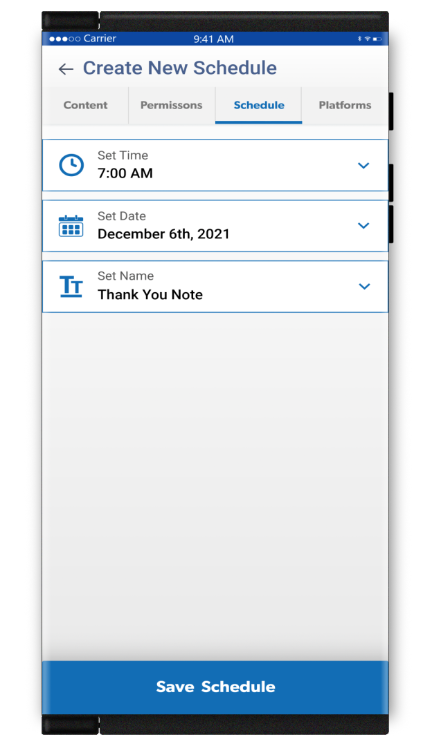
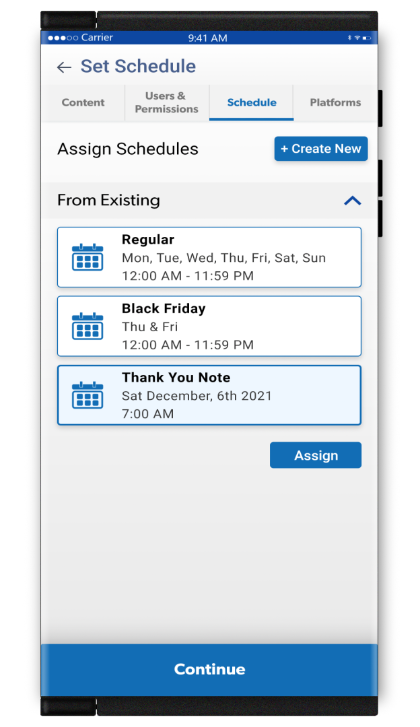
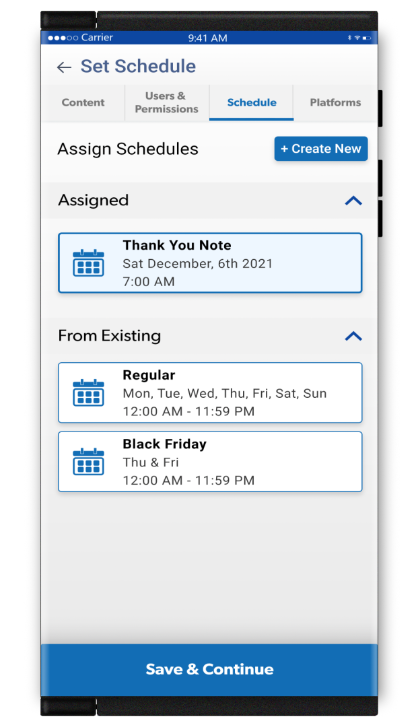
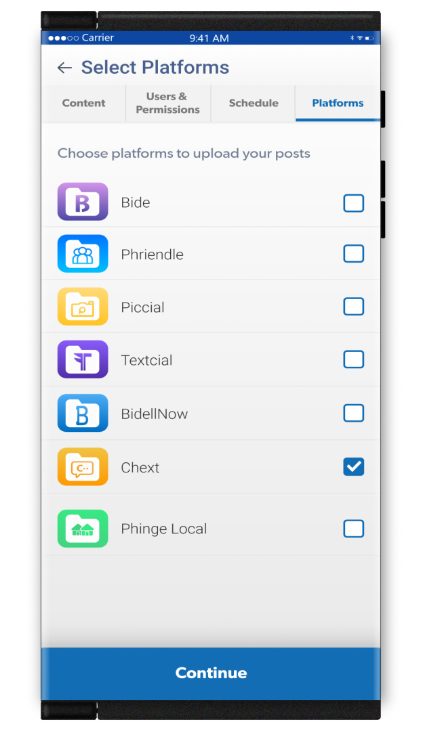
Creating Posts With Content & Images Through Onederverse
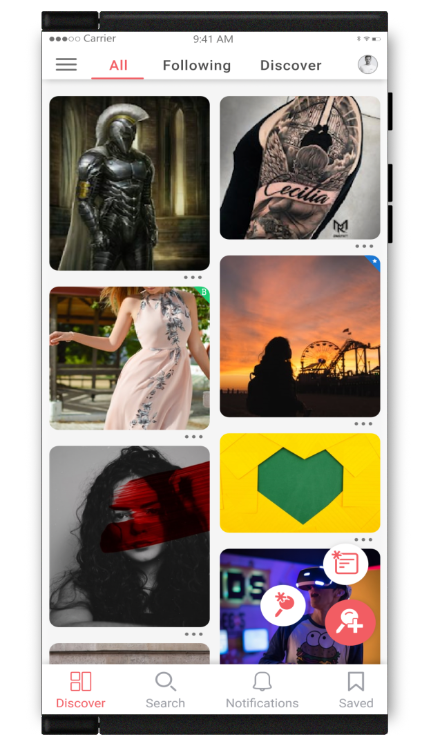
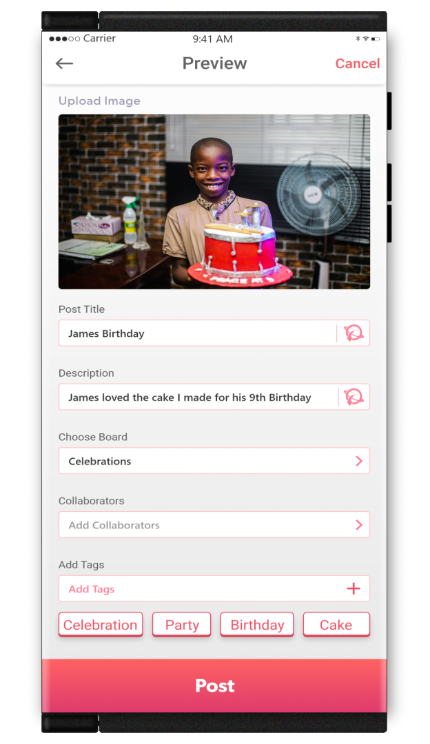
You may create a post with any content including images from any Netverse Platform.
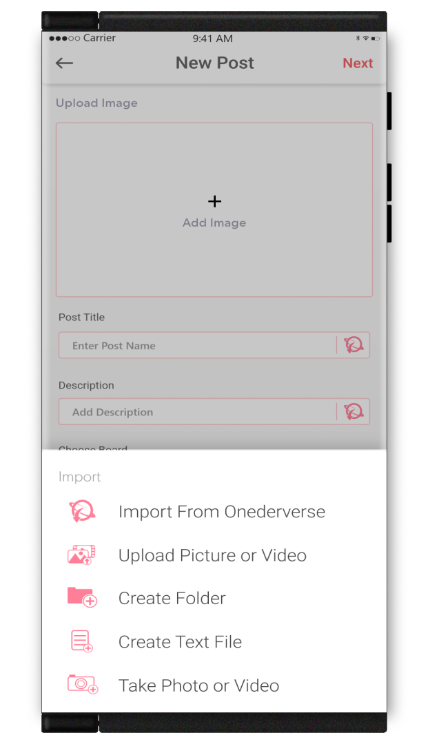
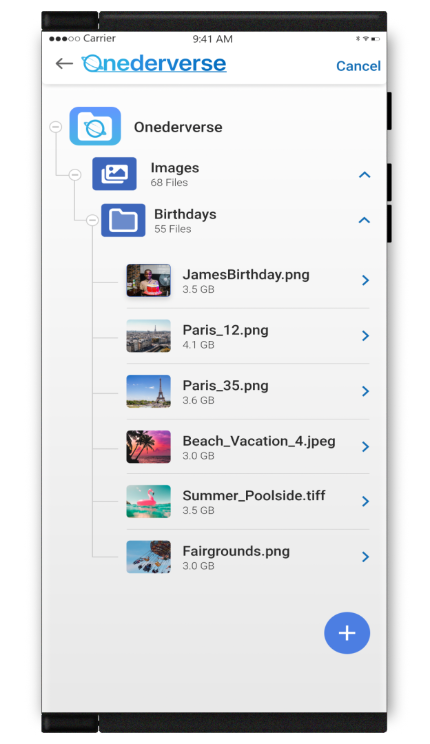
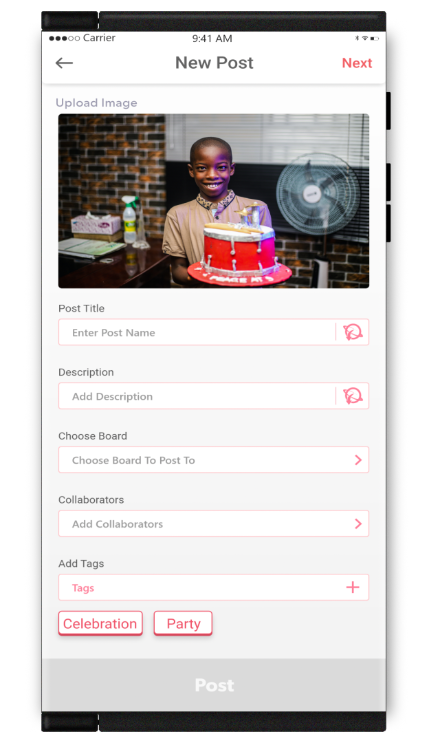
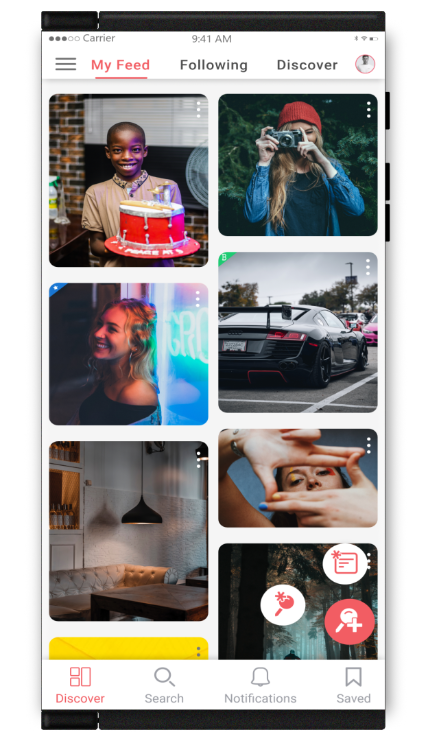
You chose the Phingeboard platform to create your new post. Your content including images are seamlessly accessed from Onederverse.
Add a description and choose a board on Phingeboard to post it to. Add collaborators and some tags.
Choose a post that is currently running on Netverse. You will be provided with everywhere else that post is currently active. After previewing, you add it to your image.
After previewing your completed post you post it to Phingeboard.
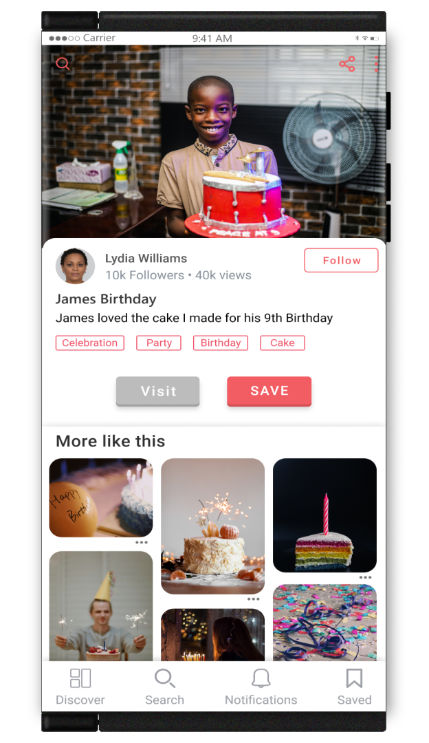
This is how users will view your new post on Phingeboard.
Scroll →
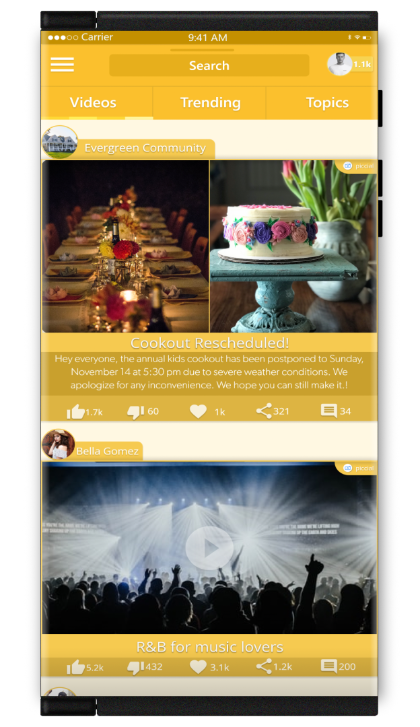
Editing Consumer Post Content From Netverse Platforms
Edit any consumer post from any Netverse platform.
Modify text and add or change images.
Compare your new post with the one you are replacing. You will also see everywhere the post you are replacing is running throughout Netverse. Select the locations that you would like to change the new post to and apply your changes.
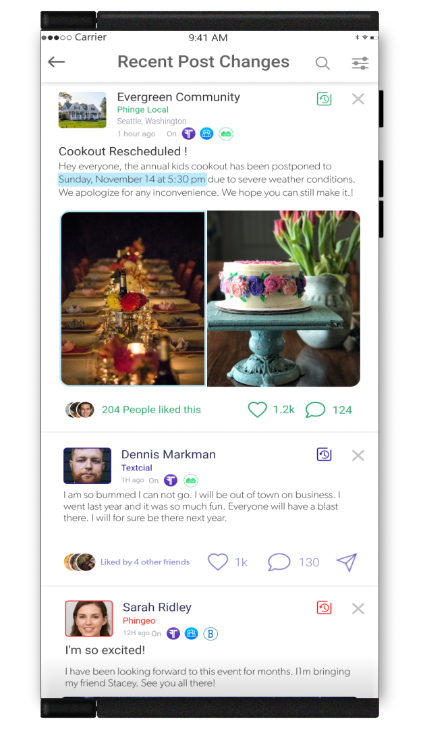
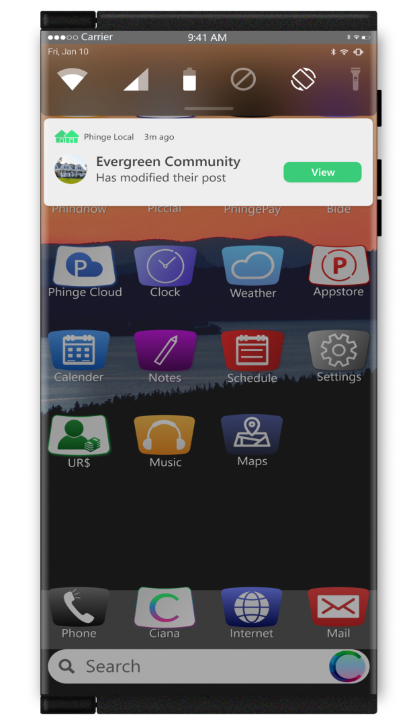
Past viewers of your previous post will receive a notification alerting them to an important change that you have made to it.
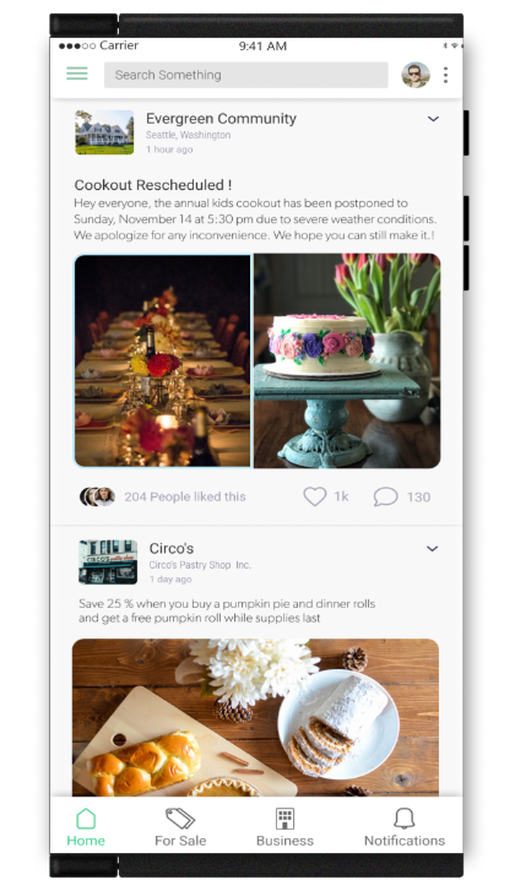
This is how your new post will look with the changes highlighted on the Netverse platforms you posted it to.
Scroll →
Editing Business Post Content From Netverse Platforms
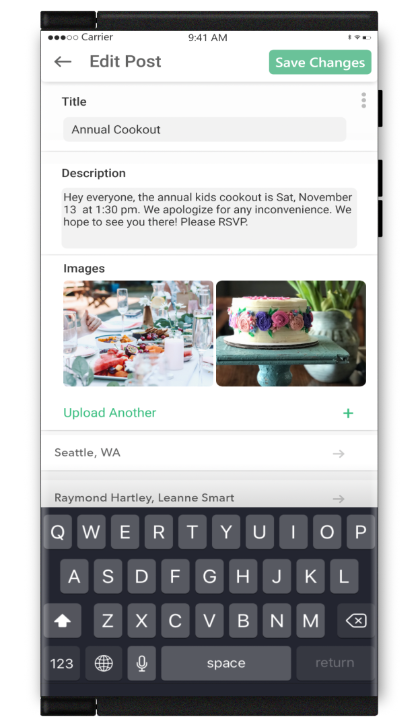
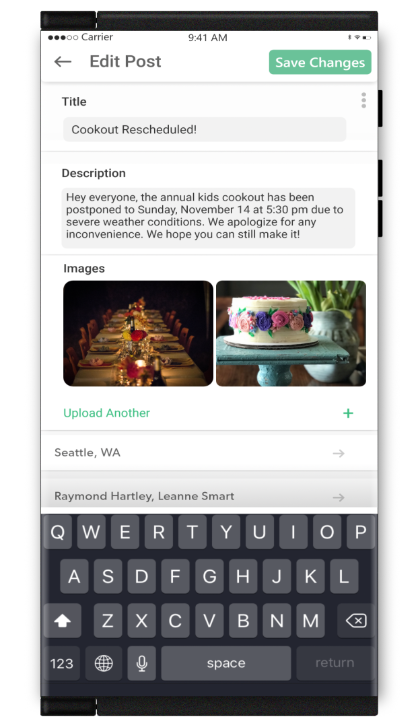
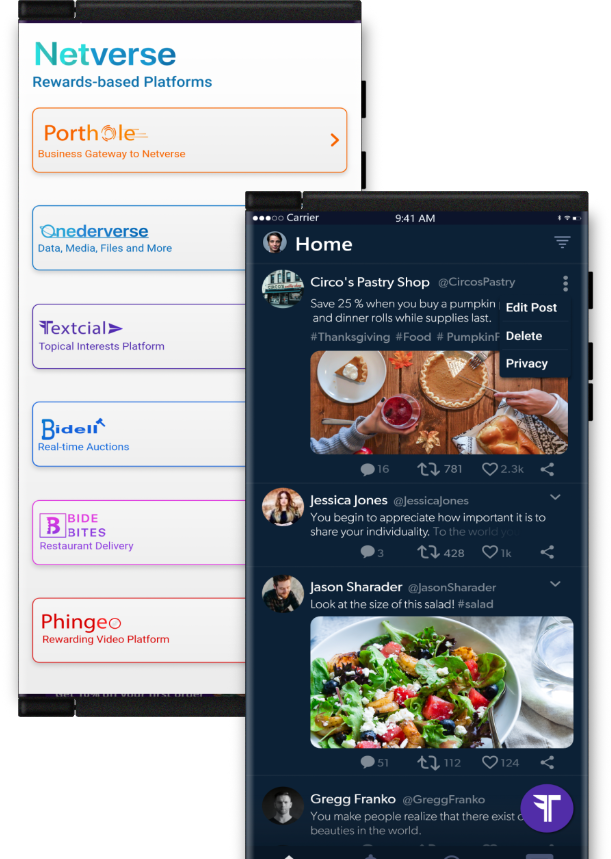
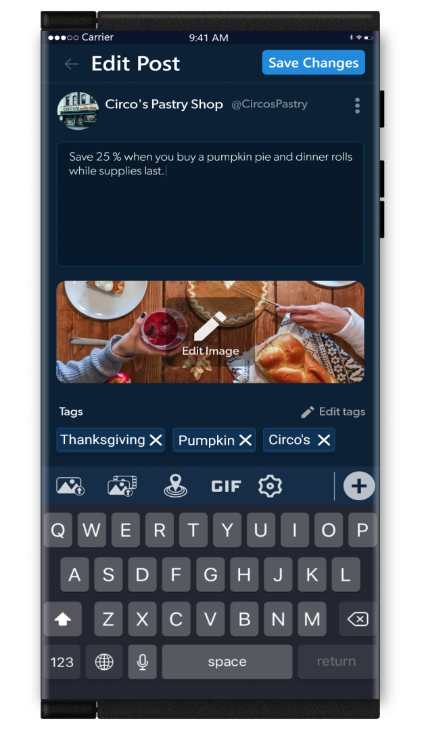
Edit any business post, offer or promotion from any Netverse platform.
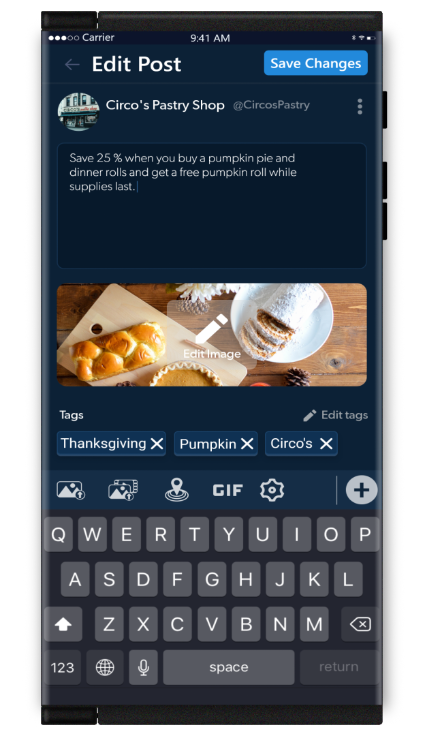
Modify text and add or change images.
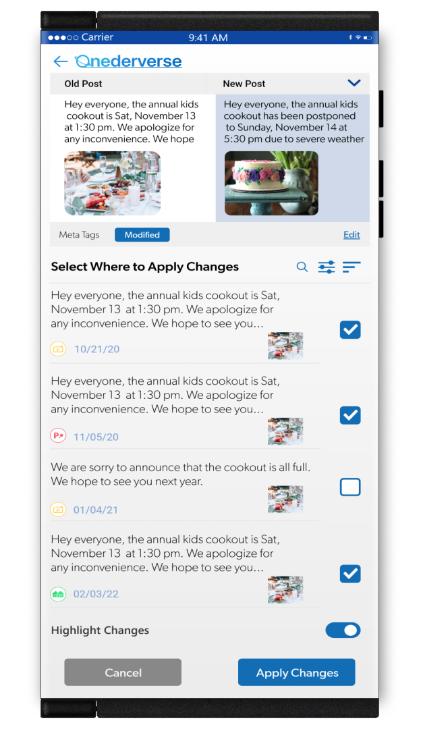
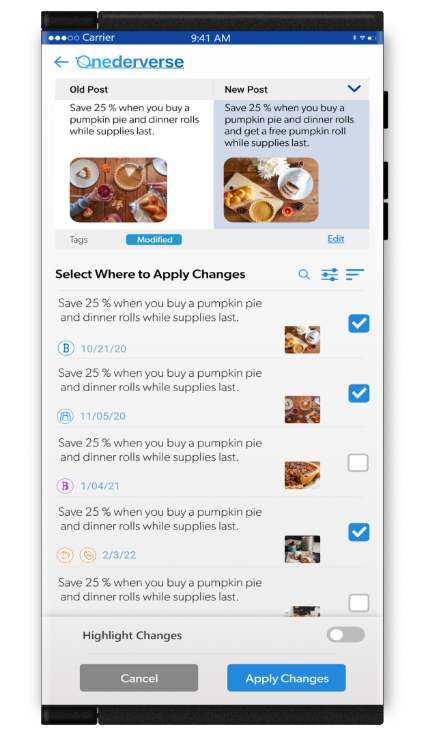
Compare your new post with the one you are replacing. You will also see everywhere the post you are replacing is running throughout Netverse. Select the locations that you would like to change the new edited post to and apply your changes.
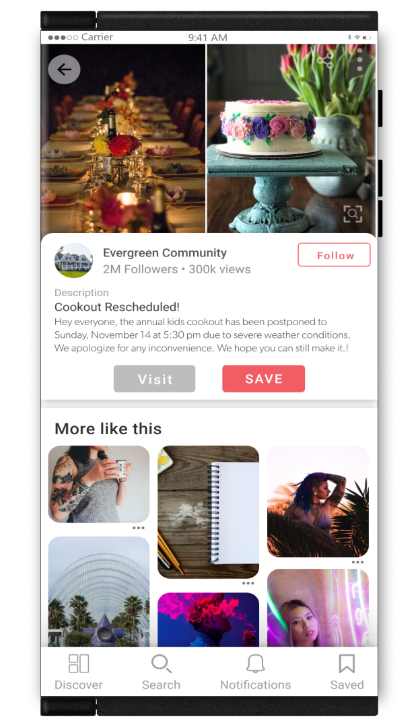
This is how your new post will look on the difference Netverse platforms you posted it to.
Scroll →
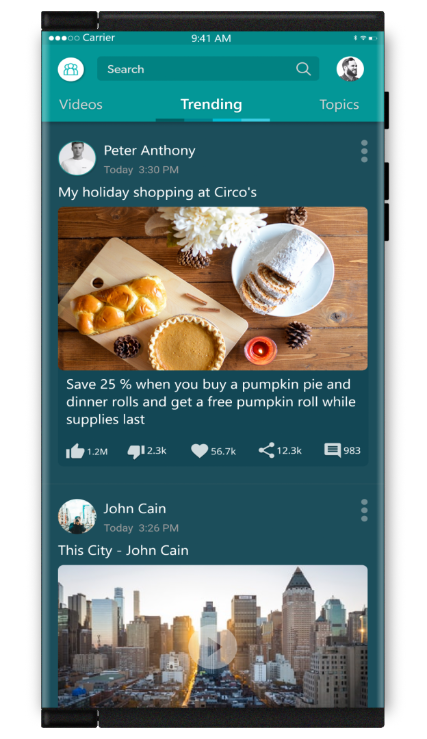
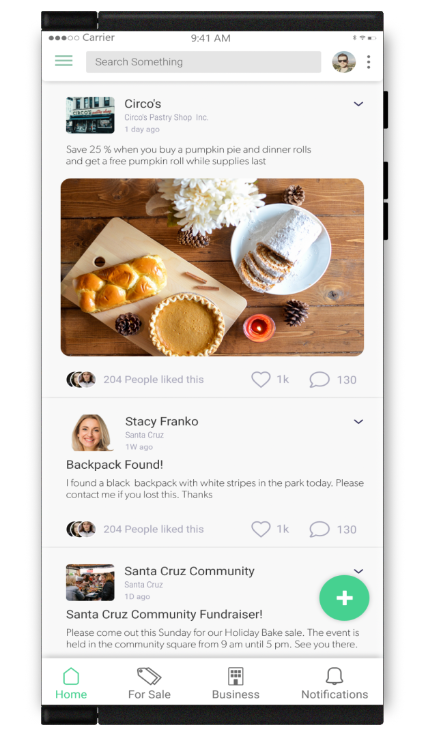
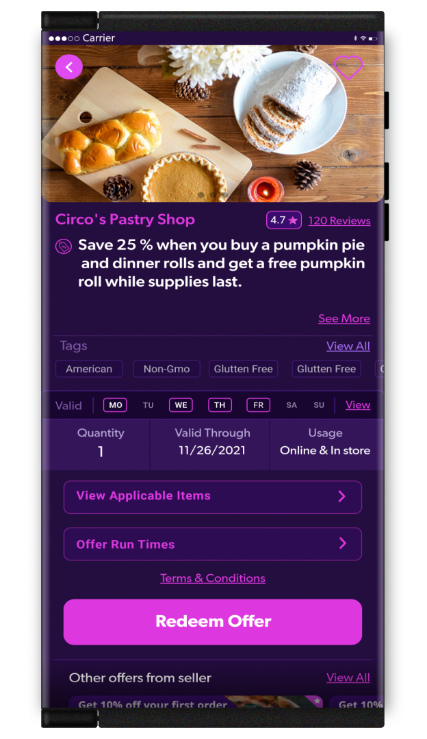
Graphic Posting Permissions
Post Syncing Across All Platforms
Everything on Netverse may be synced at any time. Choose what you want to sync from any content you have created or posted through Netverse.
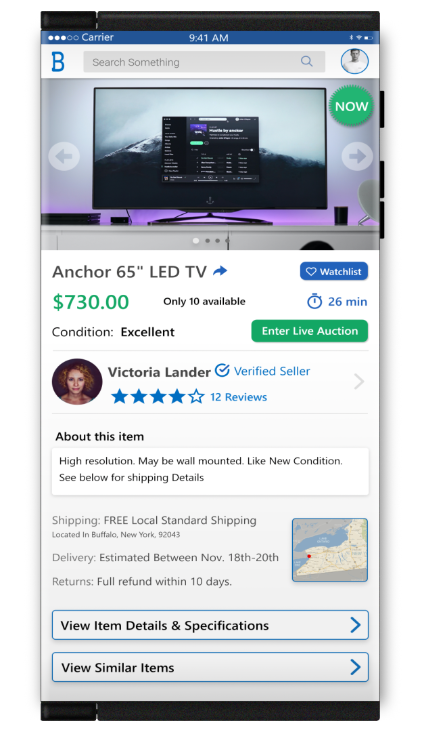
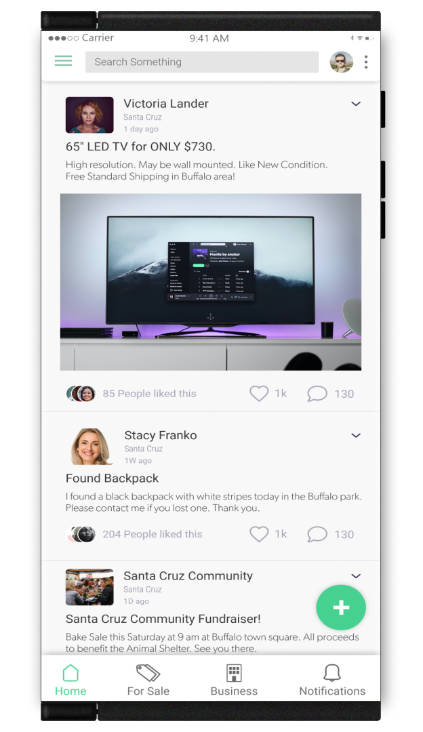
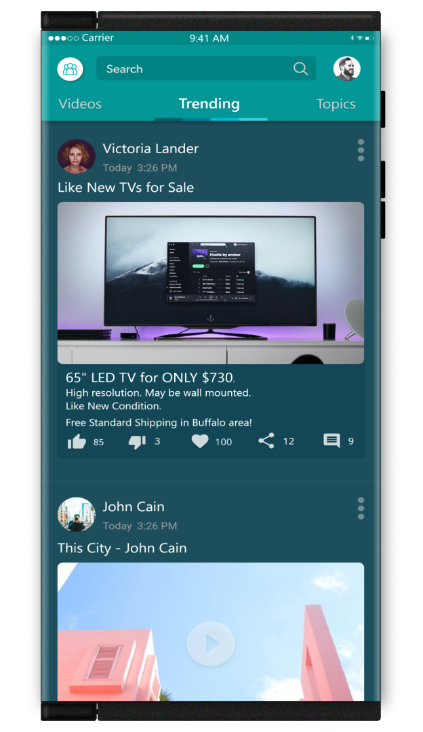
Here is an example of items being sold in auctions as well as on social media and other Netverse platforms. By syncing these common posts for the same items together, it will enable you to have uniform pricing, descriptions, images and more wherever they are for sale. As items sell from anywhere that these are shown throughout Netverse, the quantity available will decrease by the units sodl wherever they are sold.
Scroll →
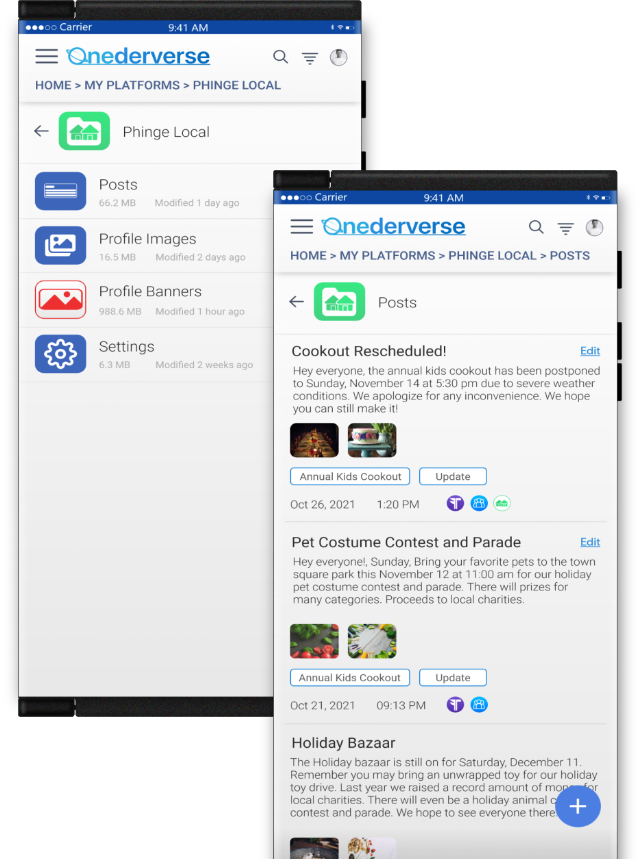
Reverting Back to Previous Posts
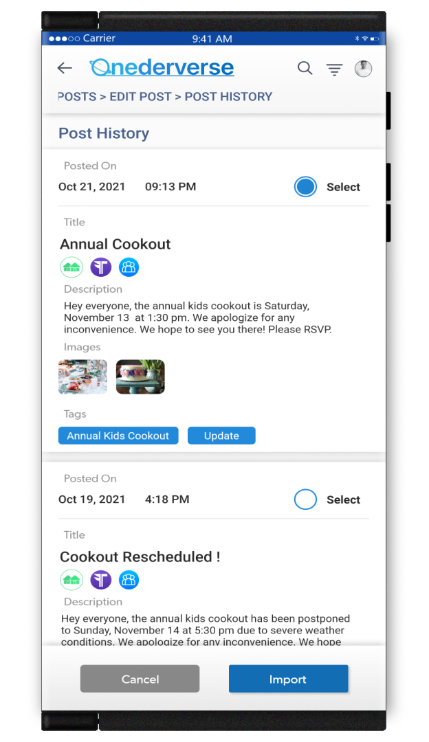
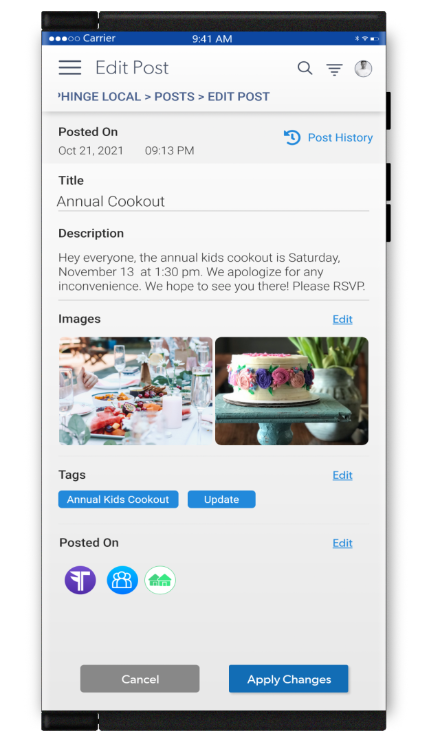
You may easily revert back to a prior post at any time even from an edited version of that post.
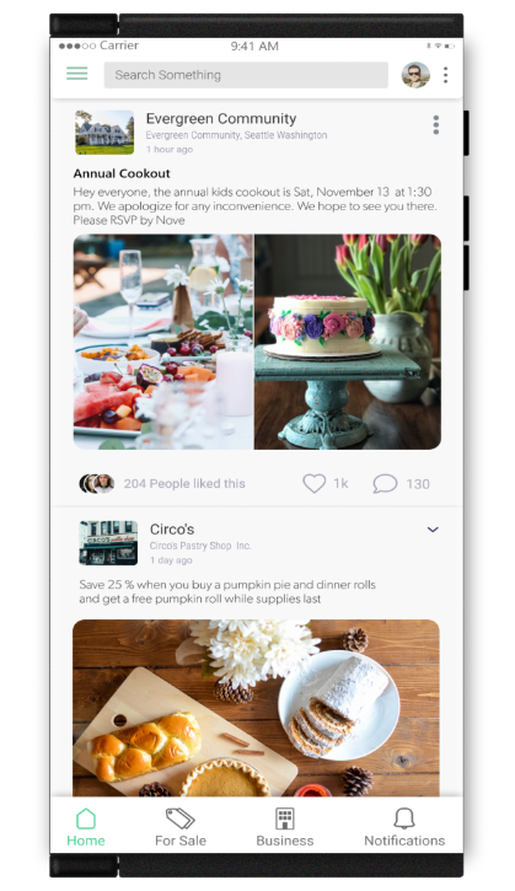
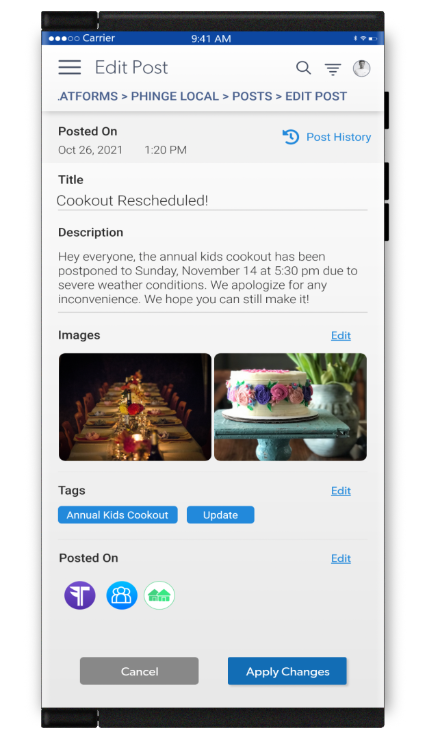
In this example a cookout was rescheduled to a new day due to bad weather. You access the previous post from the post history on the current post. The weather report has since been changed to show good weather for the previous day the cookout was schedule so you decide to have the event back on the original day.
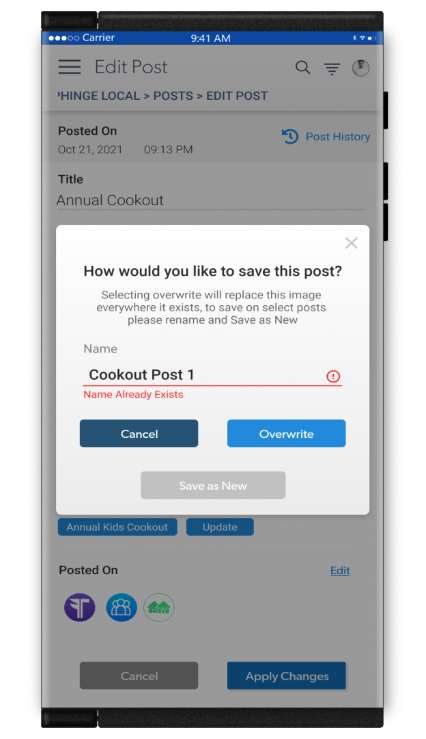
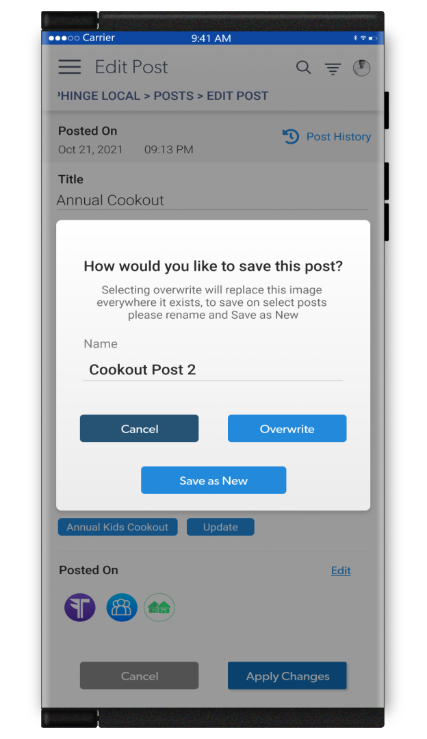
You save the post but you try to save it under the same name as the post you are replacing. You receive a message asking if you want to overwrite it everywhere.
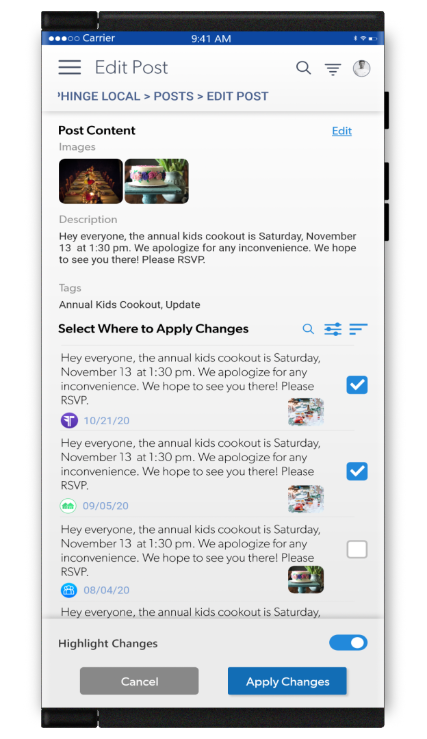
You decide to rename it because you only want to change your post only in certain locations and leave up the current posts in other locations. You apply the changes and they are applied per your request
Scroll →
Music, Movies & Games
Adding Music to Albums & Platforms
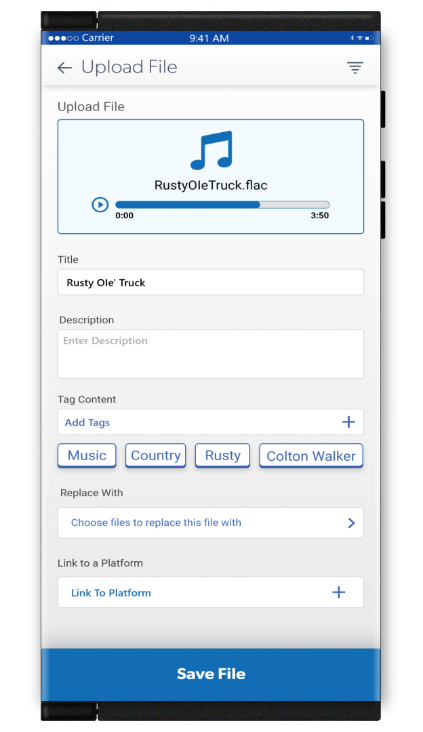
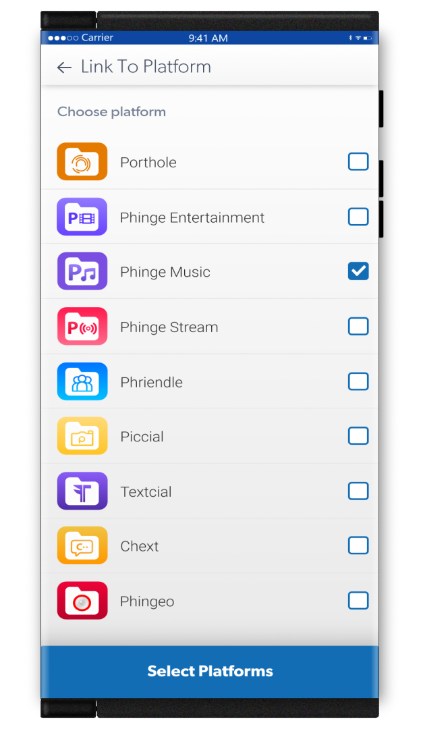
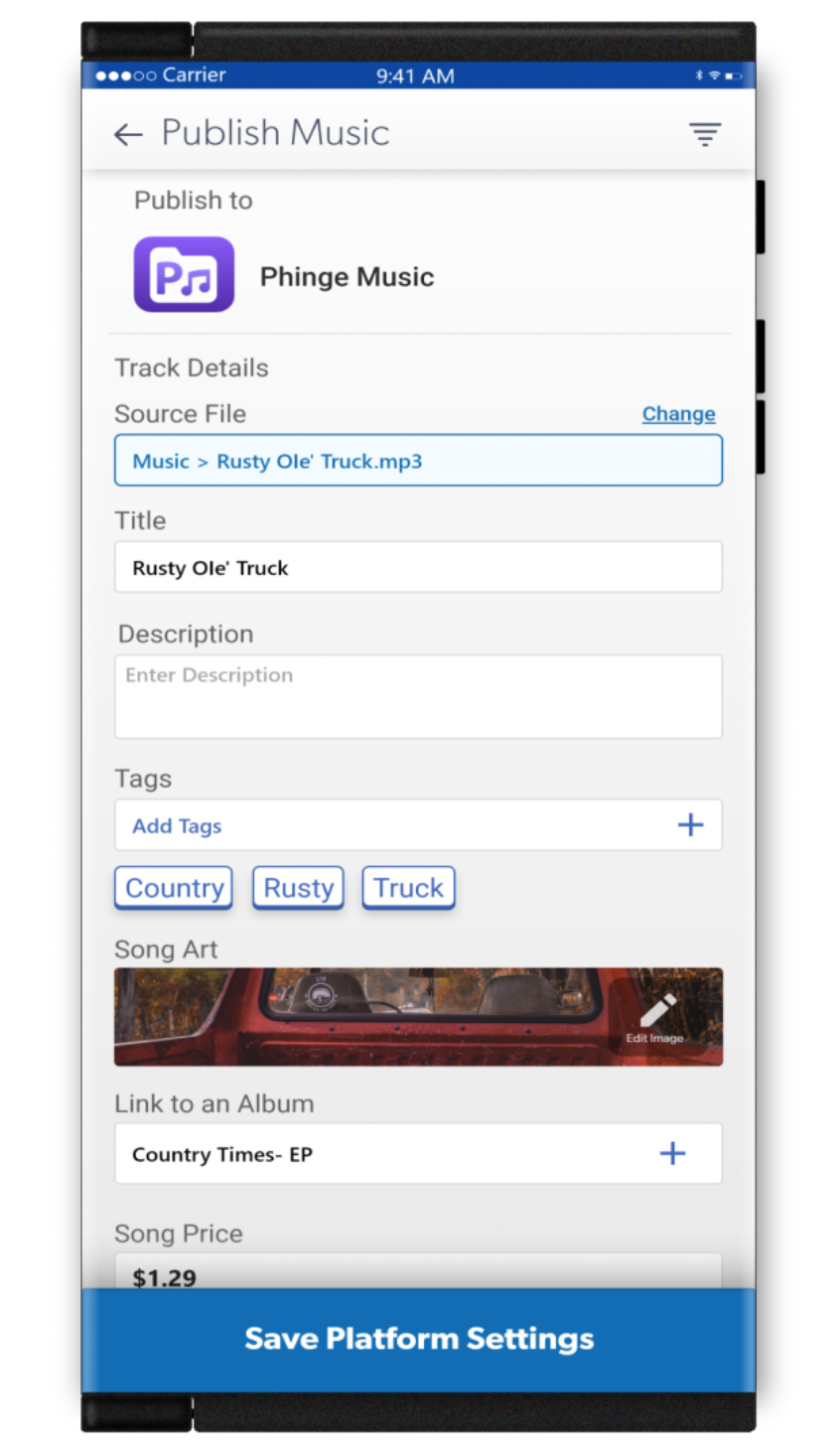
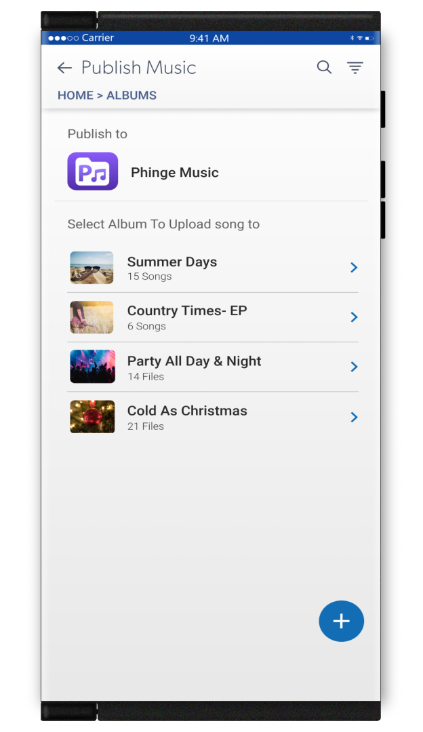
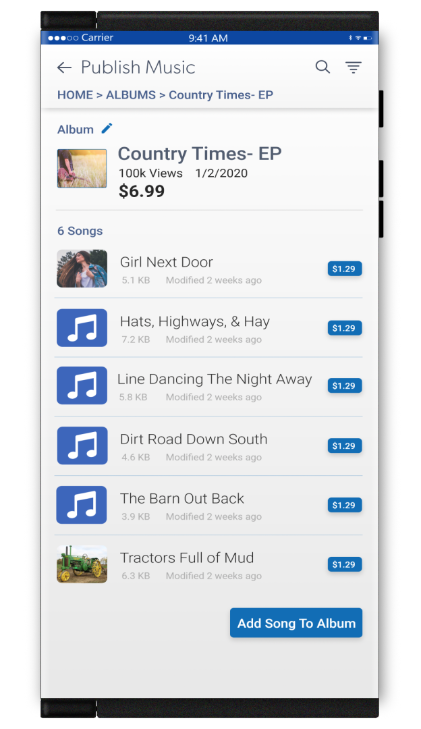
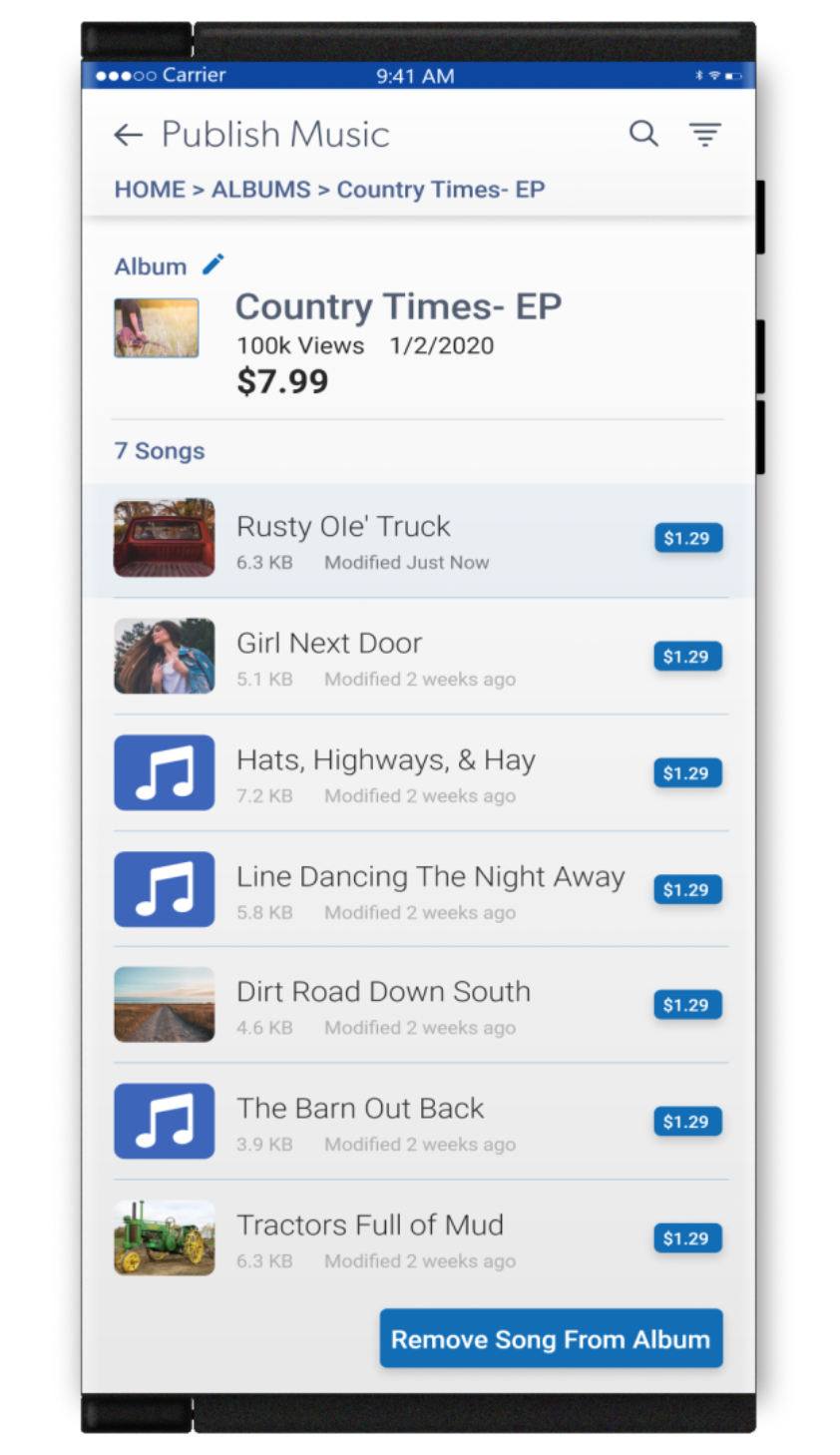
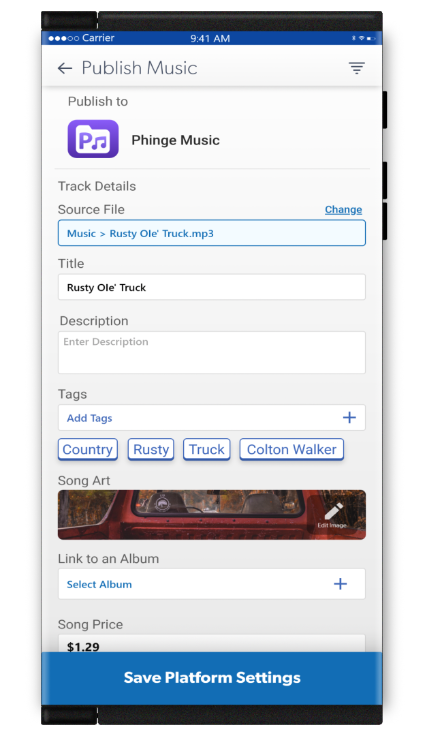
Music creators can upload albums, individual songs and add songs to existing uploaded albums to all Netverse platforms at once and at any time.Upload your song. Give it a title, describe it and add some tags. Then link it to the Netverse platforms you would like it shared to.Set a price for downloading your song. Pick a currently posted album to add it to.Adjust the price of your existing album to reflect the addition of your new song. You also have the options to remove any current songs on this album if you choose.Preview your song and the platforms it will be available on and save.
Scroll →
Preview Music Changes On Netverse Platforms
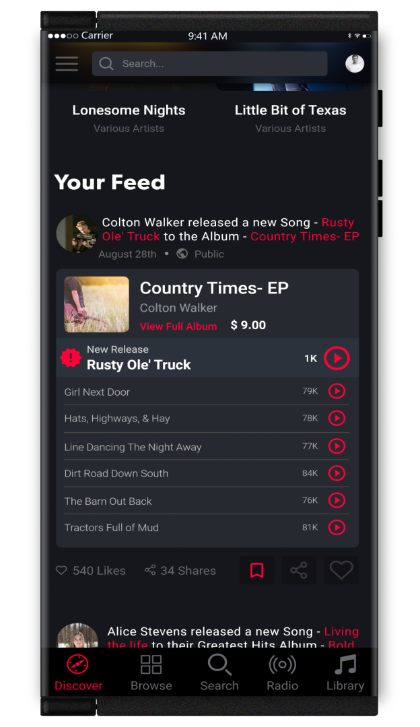
Preview your new song and the album that it has been added to. There can even be a special banner announcing your new release to let others know about this exciting event.
Scroll →
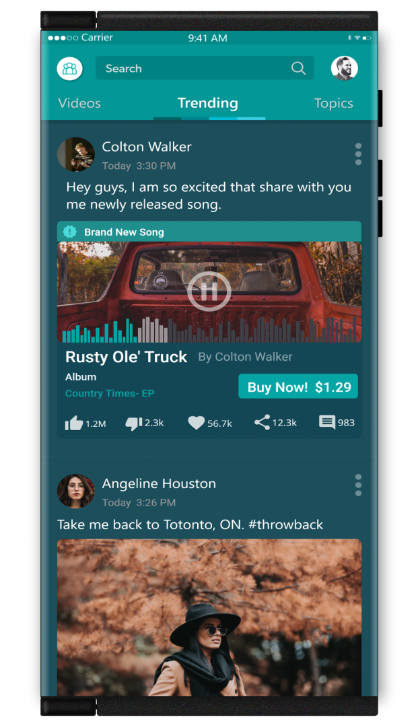
Music Sharing
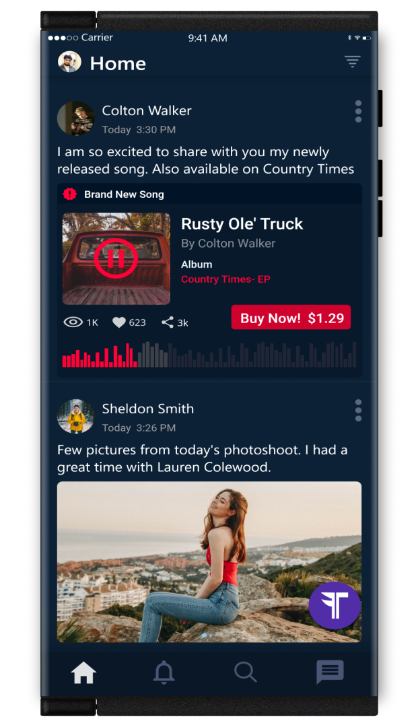
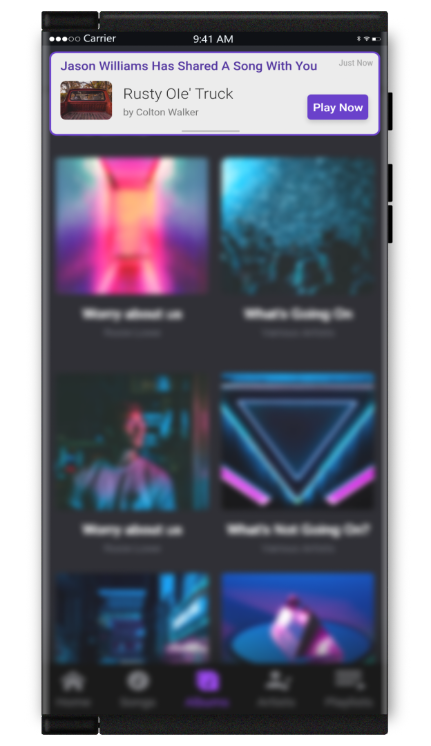
Users may share music to anyone on Netverse. Music creators may offer the ability to share certain music with a limited amount of people on Netverse within a certain timeframe subject to any terms and conditions set by the music creator.
Recipients will then me notified of the shared music and any terms and conditions set by the music creator associated with their listening to it for no charge
Scroll →
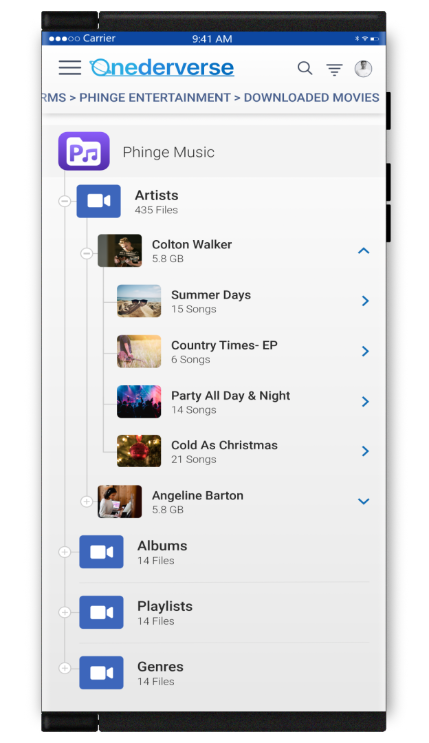
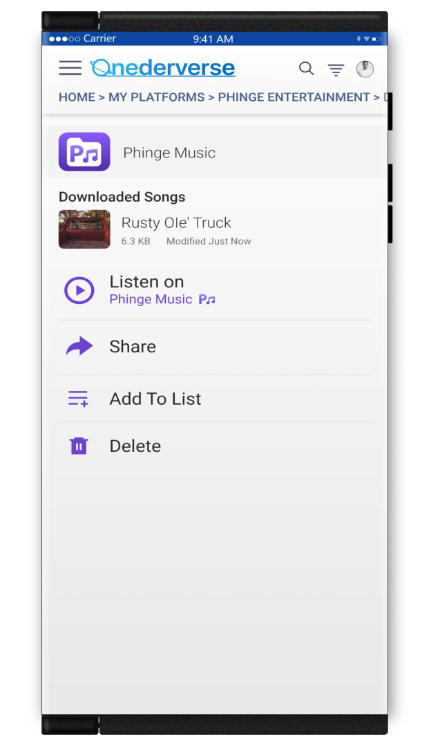
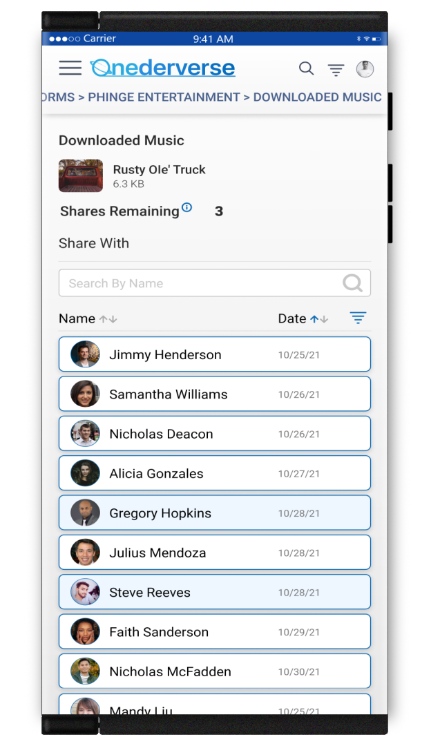
Share Movies, Streaming & More
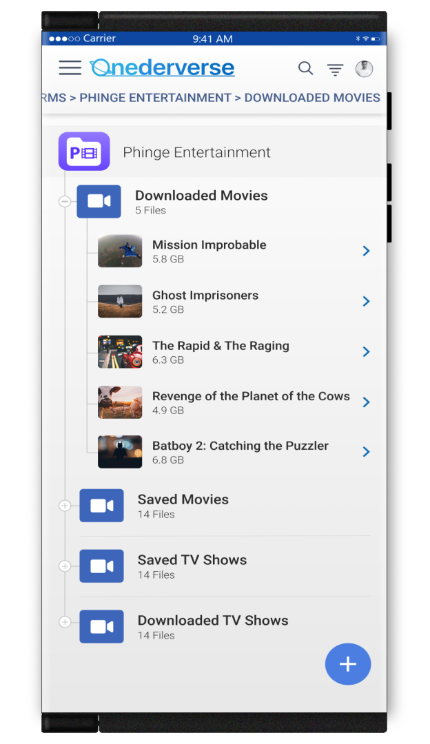
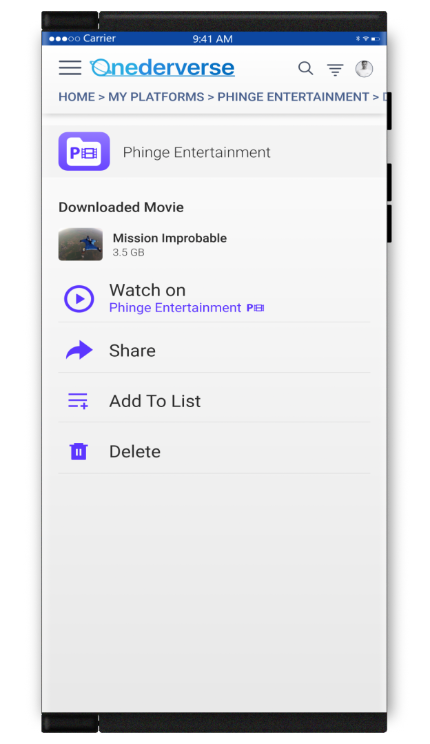
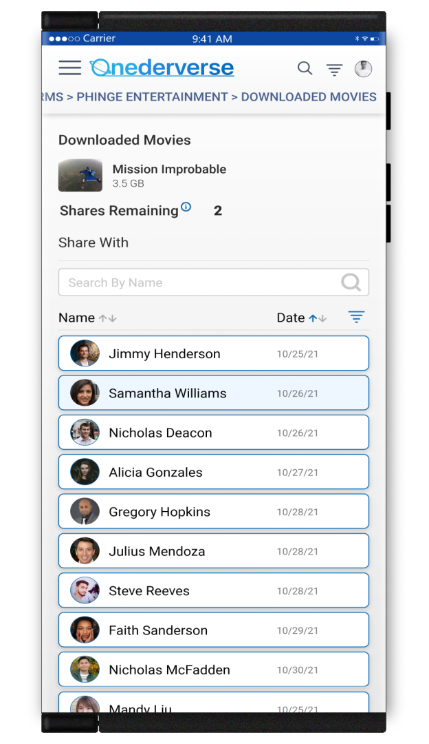
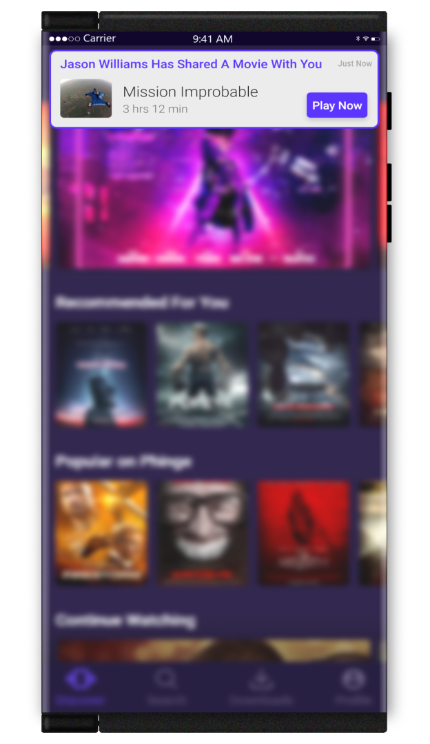
Users may share movies to anyone on Netverse. Movie creators may offer the ability to share certain music with a limited amount of people on Netverse within a certain timeframe subject to any terms and conditions set by the movie creator.
Scroll →
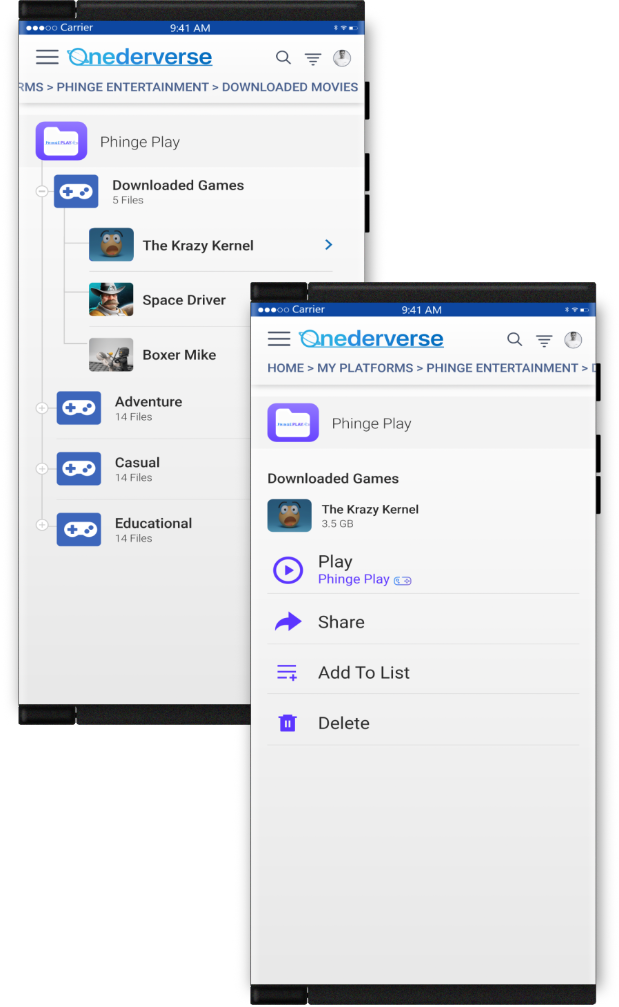
PhingePlay Shared Gaming
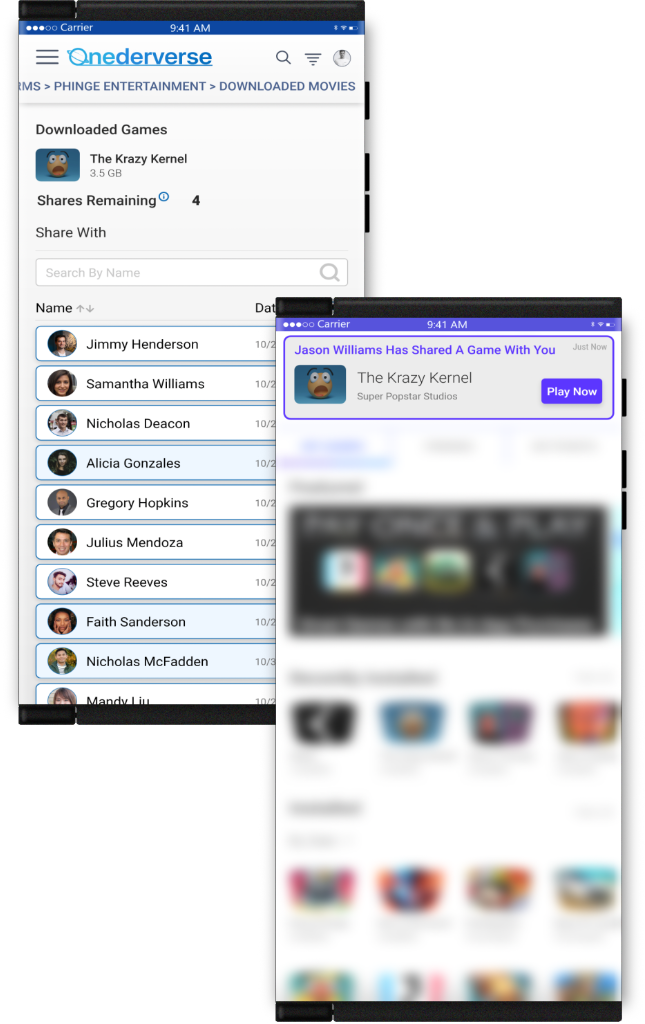
Users may share online games with anyone on Netverse. Game creators may offer the ability to share certain games with a limited amount of people on Netverse within a certain timeframe subject to any terms and conditions set by the game content creator.
Recipients will then me notified of the shared game and any terms and conditions set by the game creator associated with their playing the game for no charge.
Scroll →
Privacy & Access
Data Accessibility Through Netverse
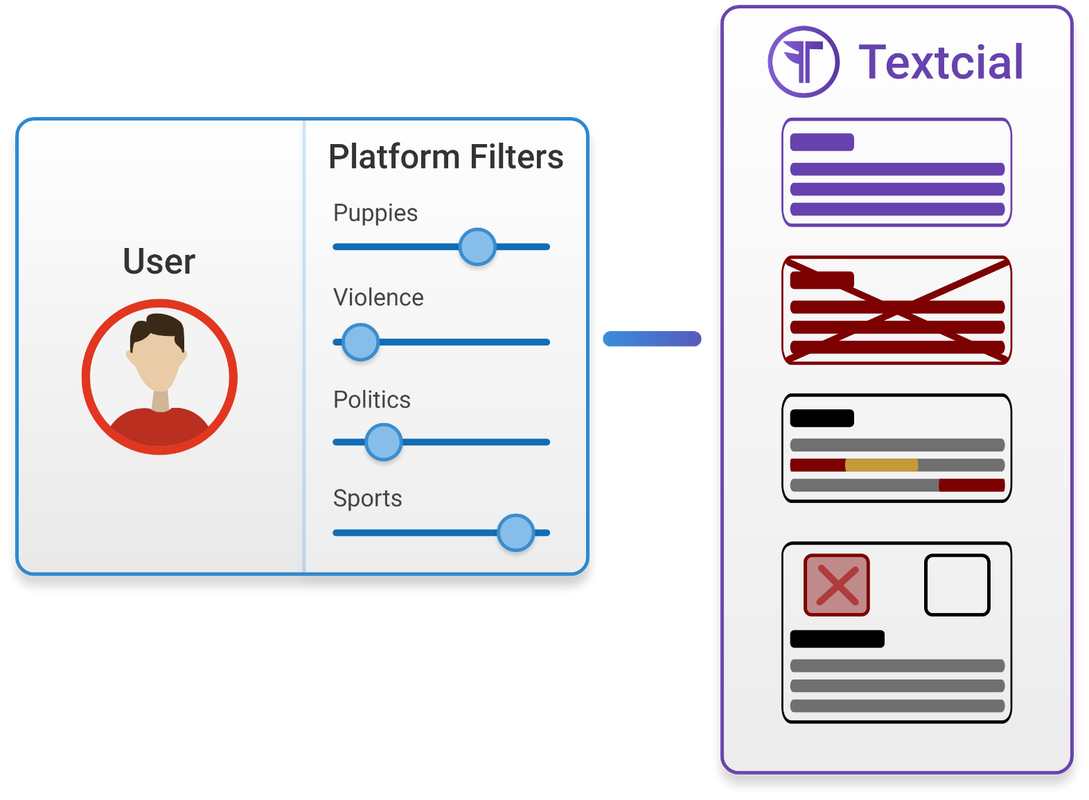
Enhanced Privacy Filters & Permissions
Onederverse provides powerful content filtering and privacy tools.
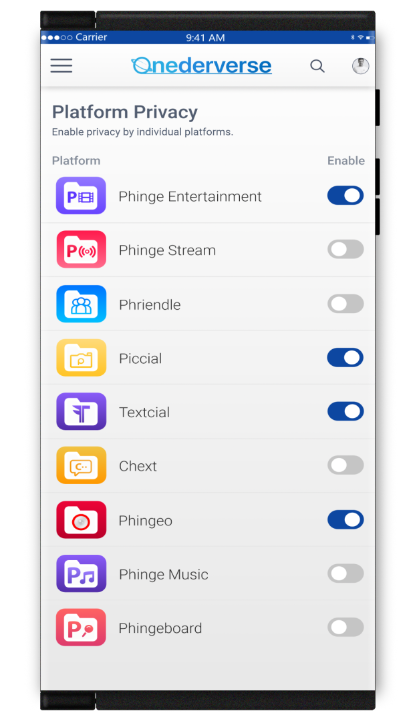
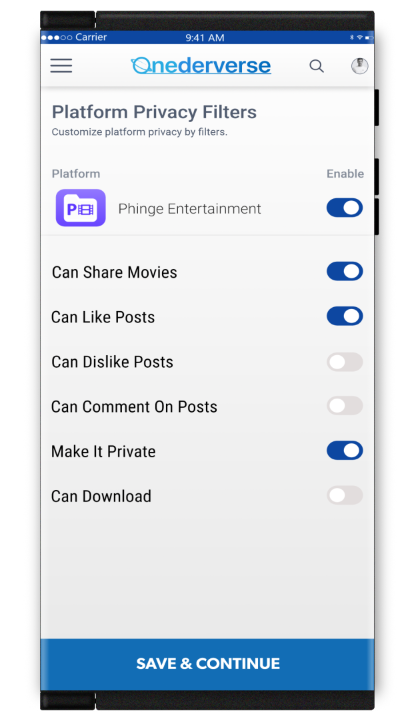
Platform Privacy
Control all of your privacy throughout Netverse and its approved platforms through Onederverse. Privacy may be set by platforms, users, businesses and more. You may also set advanced, enhanced privacy settings by individual filters as well for added privacy.
Scroll →
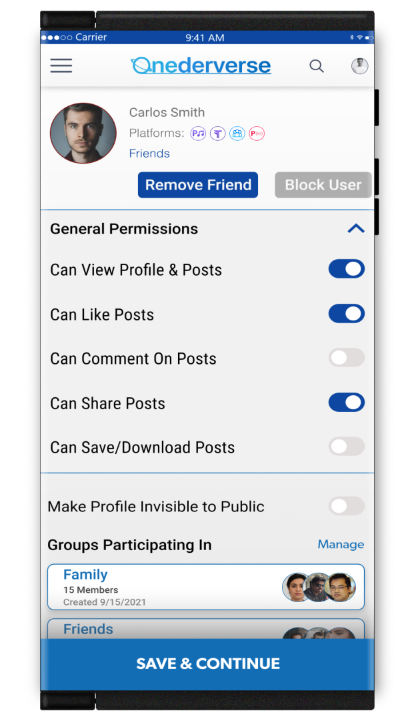
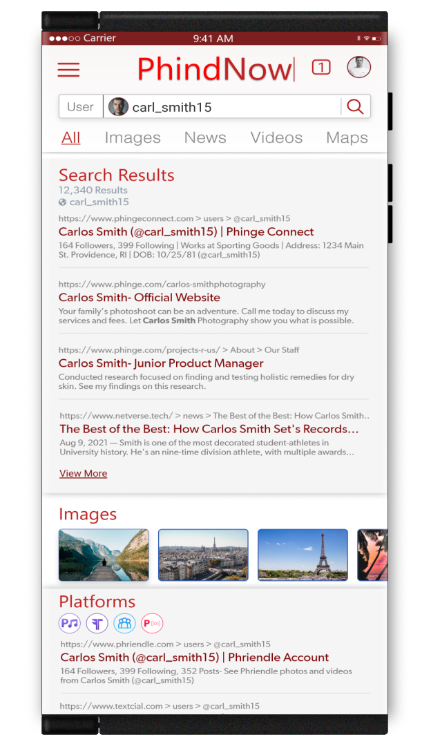
Search Results By Privacy Permissions
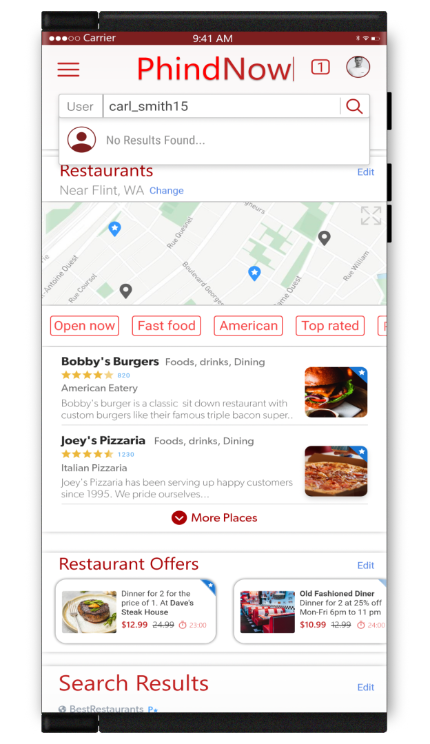
Search for Netverse users throughout Netverse and its approved merchants and platforms. View everything regarding them including their posts, reviews, media, their businesses and more in one convenient search
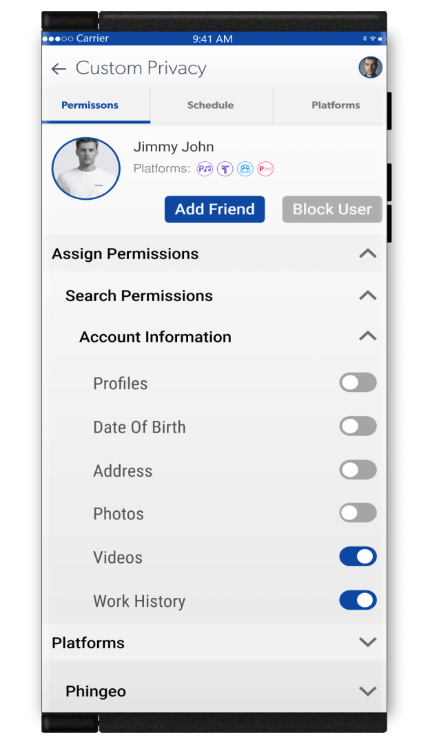
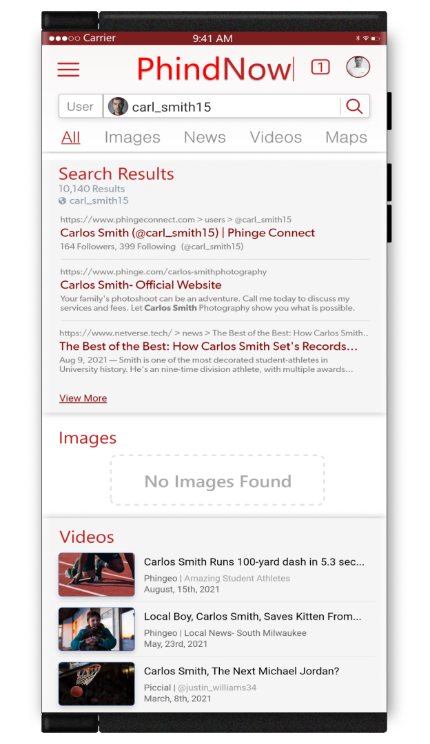
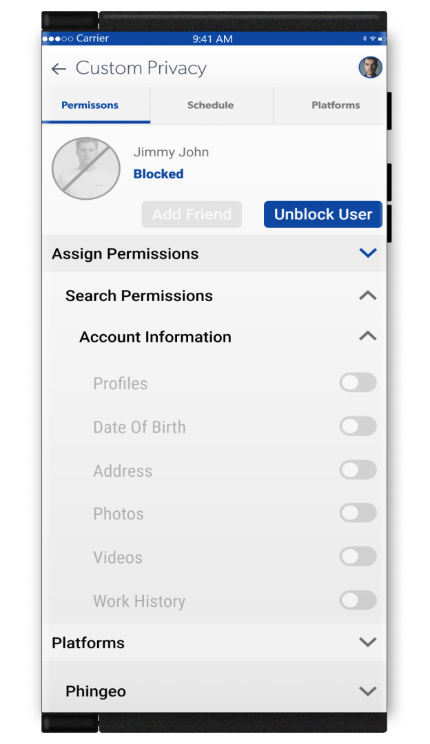
Netverse users may also block other Netverse users from all of their search results. When users are blocked, they will see no search results from you from anywhere throughout Netverse including your posts, reviews, media, businesses and more.
Netverse users may filter what other Netverse users see about them in their search results. Simply toggle individual privacy permissions on or off.
Scroll →
Universal Data Privacy
Accesses only what you allow
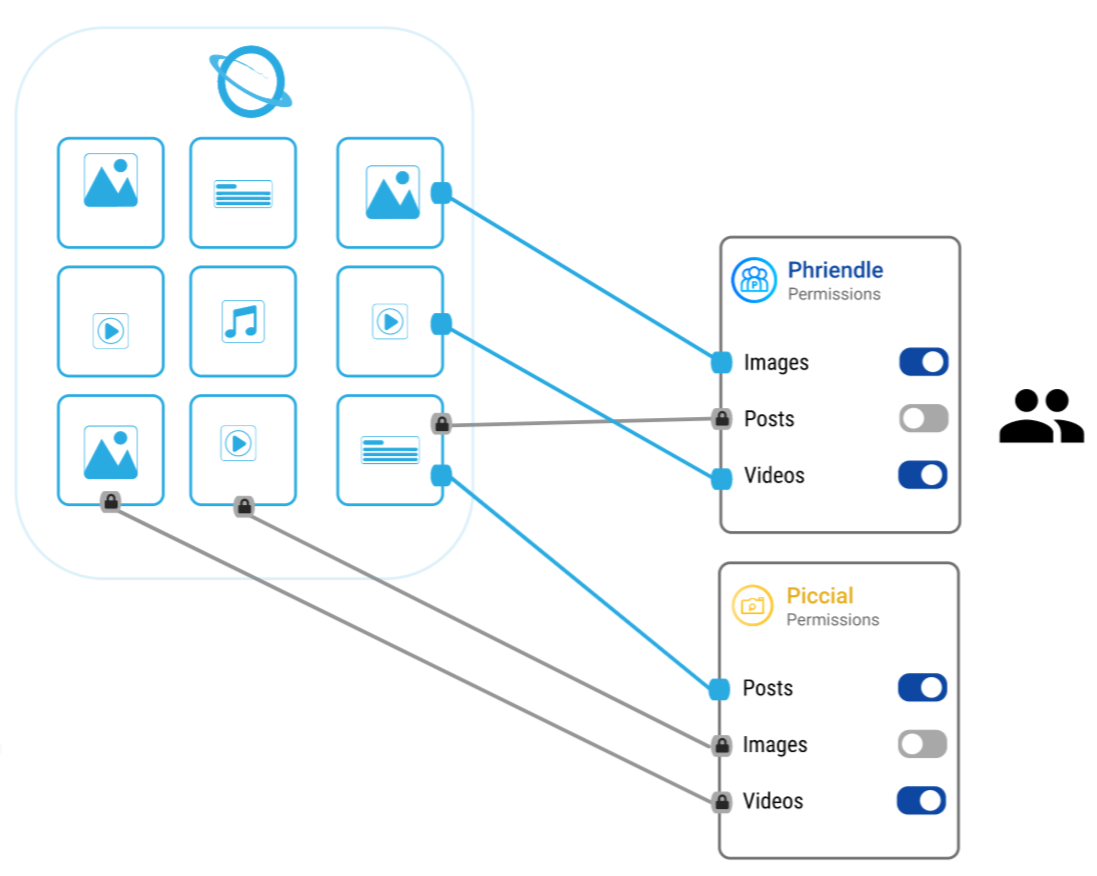
This illustration shows how your data is secured in Onederverse. Every piece of your data are contained in their own individual lock boxes, accessible only by you. Every other user, business and platform must have your permission to access any content of each of your individual lock boxes to access the data.
JOIN NETVERSE
Your Data and Digital Sovereign Future Starts Here.
Sign up today, and get notified when Netverse goes live.